Default Keyboard Shortcuts
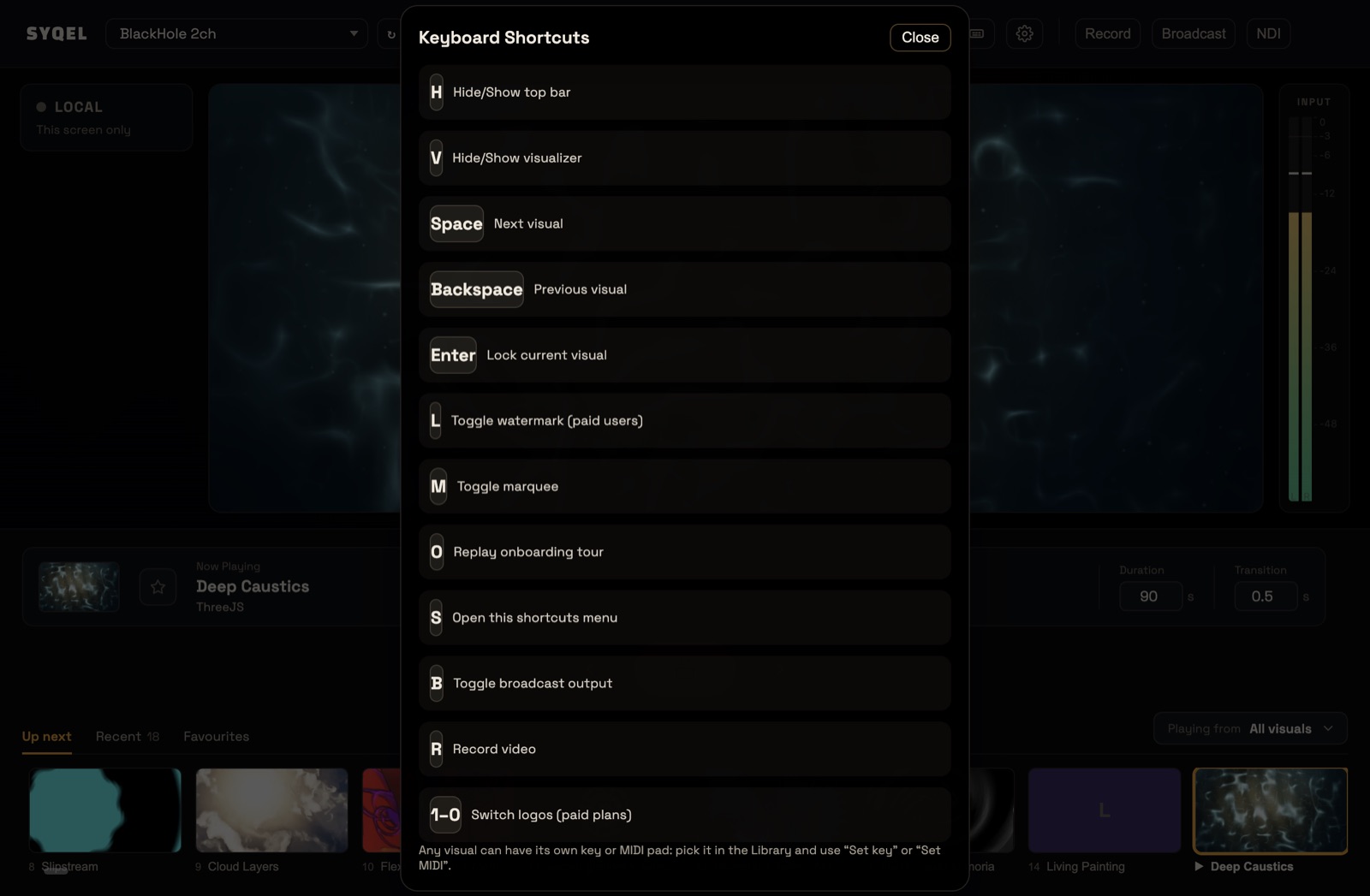
Click the keyboard icon in the top bar, or press S, to open the Keyboard Shortcuts overlay. The keys work while the visuals keep running.
| Key | Action |
|---|---|
| Space | Next Visual |
| Backspace | Previous Visual (the one you were watching before) |
| Enter | Lock Visual (hold this visual; press again to release) |
| V | Hide/Show Visualizer (blacks out the visual) |
| H | Hide Topbar (hides the top bar and performance bar for a clean screen) |
| L | Toggle Watermark (your logo; paid plans) |
| M | Toggle Marquee |
| S | Keyboard Shortcuts Menu |
| O | Replay Onboarding |
| 1–9 | Switch to logo slot 1–9 (paid plans) |
B (Broadcast Output) and R (Record Video) are in the list too, but broadcasting and recording need SYQEL Desktop.
Change a key
- Open Settings › Hotkeys & MIDI.
- Click Learn Key next to the action, then press the new key. It’s saved straight away.
Learn MIDI does the same with a controller pad (see Connecting to MIDI). Restore Defaults puts every key back. The number keys can’t be remapped.
Give a visual or a playlist its own key
In Settings › Library, click a visual, then under Bring it up with click Set next to Key. For a playlist, open it in Settings › Playlists and use its Shortcuts line.
Shortcuts don’t fire while Settings is open, so close it before you play. On Free, L and the number keys open the upgrade screen; see Adding Watermark Logos.
Did this help? If you’re still stuck, email [email protected].