SYQEL Desktop
Tutorials, step by step
Start with the quick start, or watch the full tutorial in one sitting. Then 12 short videos, about 21 minutes in all, take you from getting sound in to recording your first set and making your own visuals.
Start here

SYQEL Desktop quick start: audio-reactive visuals for your DJ set in 5 steps
The five things to set before your first gig: your sound source, how the visuals change, the big screen, and Record for a DJ mix video.

SYQEL Desktop full tutorial: every feature of the music visualizer, step by step
Everything in one sitting: sound sources, MIDI, playlists, Milkdrop, importing shaders and sending visuals to OBS.
Step by step
-
 01
01How to get sound into SYQEL Desktop
Pick rekordbox, a microphone or a virtual cable as the source, and the visuals follow your music.
2:02 Read the guide -
 02
02Control your visuals live: auto, BPM, keyboard and MIDI
Let it run on its own, change on the beat, or drive it yourself from the keyboard or a MIDI controller.
4:11 Read the guide -
 03
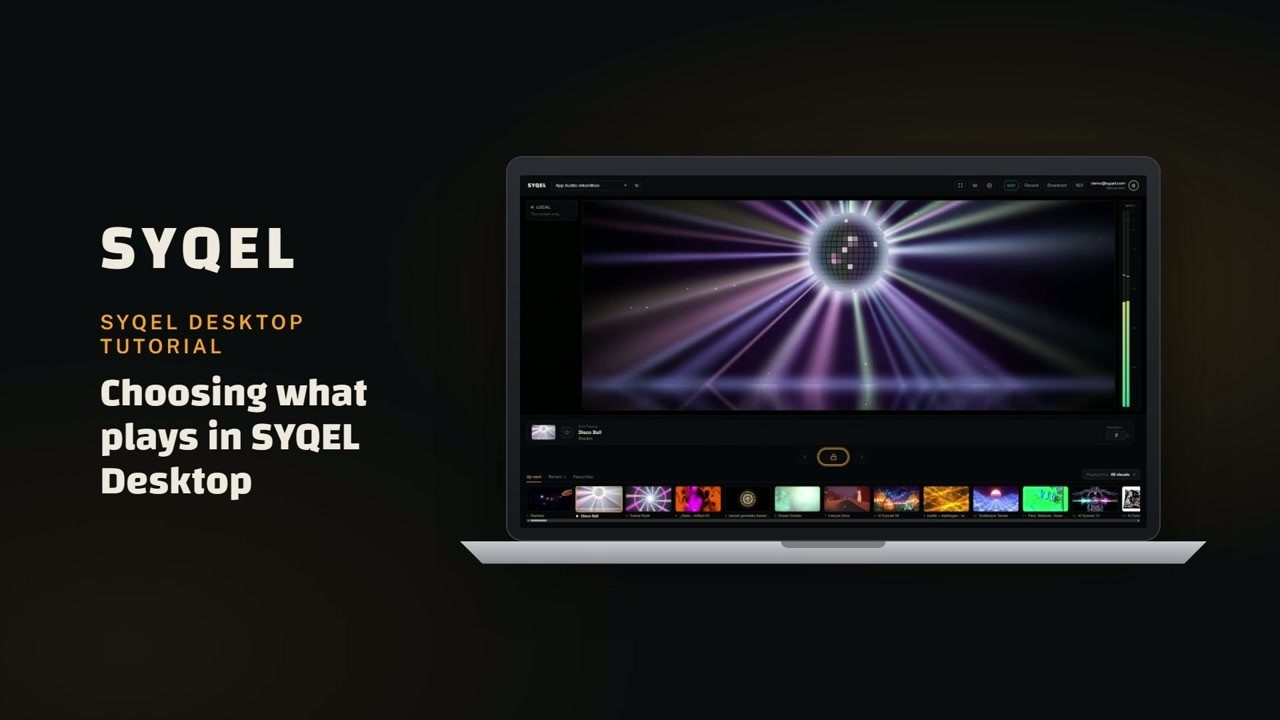
03Feeds and playlists: choose what your visualizer plays
Choose which of the five feeds play: worlds, shaders, scenes, Milkdrop and image visuals.
2:04 Read the guide -
 04
04Send your visuals to OBS: Broadcast, Spout, window capture and NDI
Get the visuals into OBS, a projector rig or another computer.
2:24 Read the guide -
 05
05Make a DJ mix music video for Reels, TikTok and YouTube
Press record and your mix comes out as a music video, sized for every platform.
1:10 Read the guide -
 06
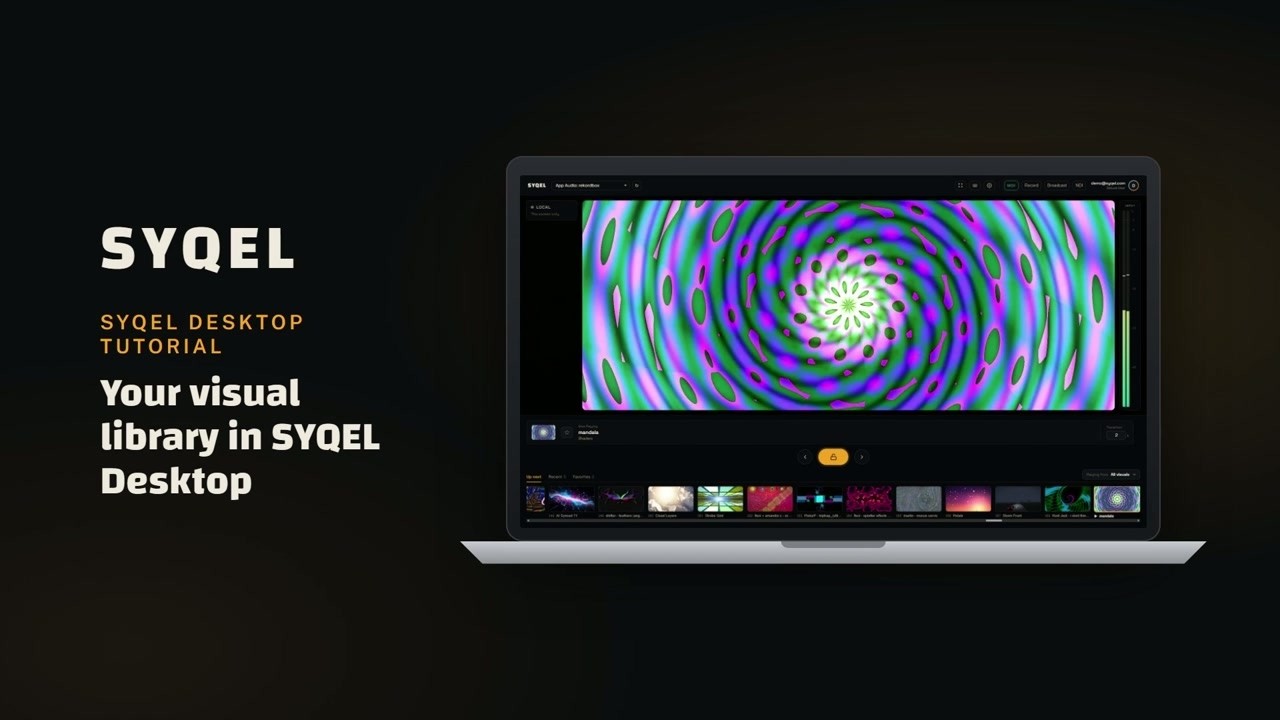
06Map any visual to a MIDI pad or a key
Put a visual on a pad or a key and fire it exactly when the drop hits.
1:12 Read the guide -
 07
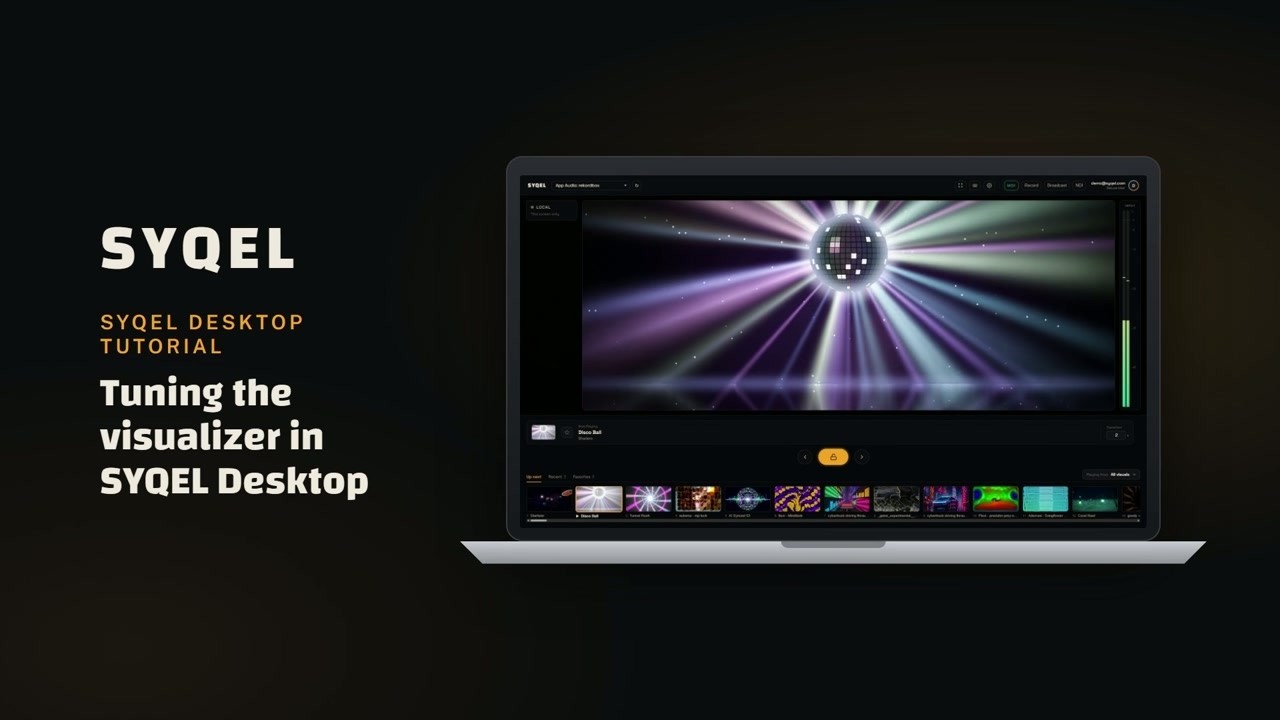
07Settings: frame rate, frequency reactiveness and themes
Set the frame rate, how strongly the visuals react to each part of the sound, and the look of the app.
1:06 Read the guide -
 08
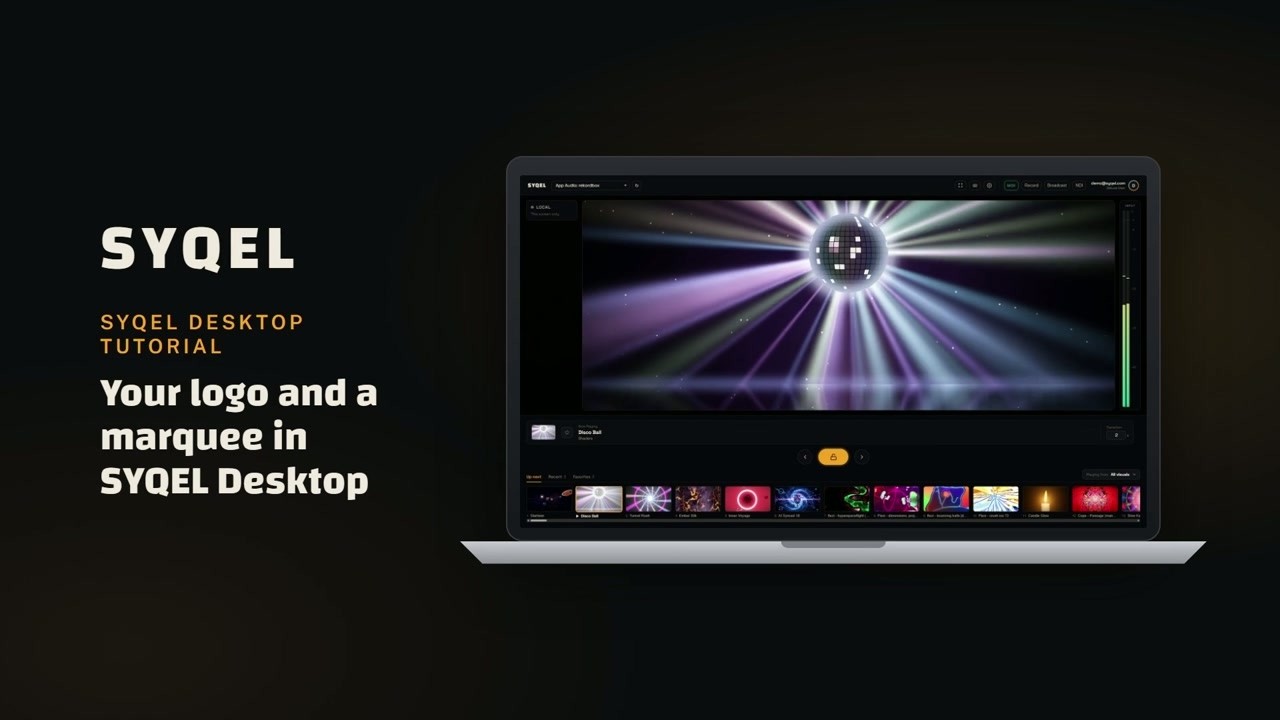
08Brand your DJ set: logo and scrolling text
Put your logo on the visuals and run a line of scrolling text across the screen.
1:27 Read the guide -
 09
09Import your own shaders and Milkdrop presets
Bring the presets and shaders you already own into the library.
1:10 Read the guide -
 10
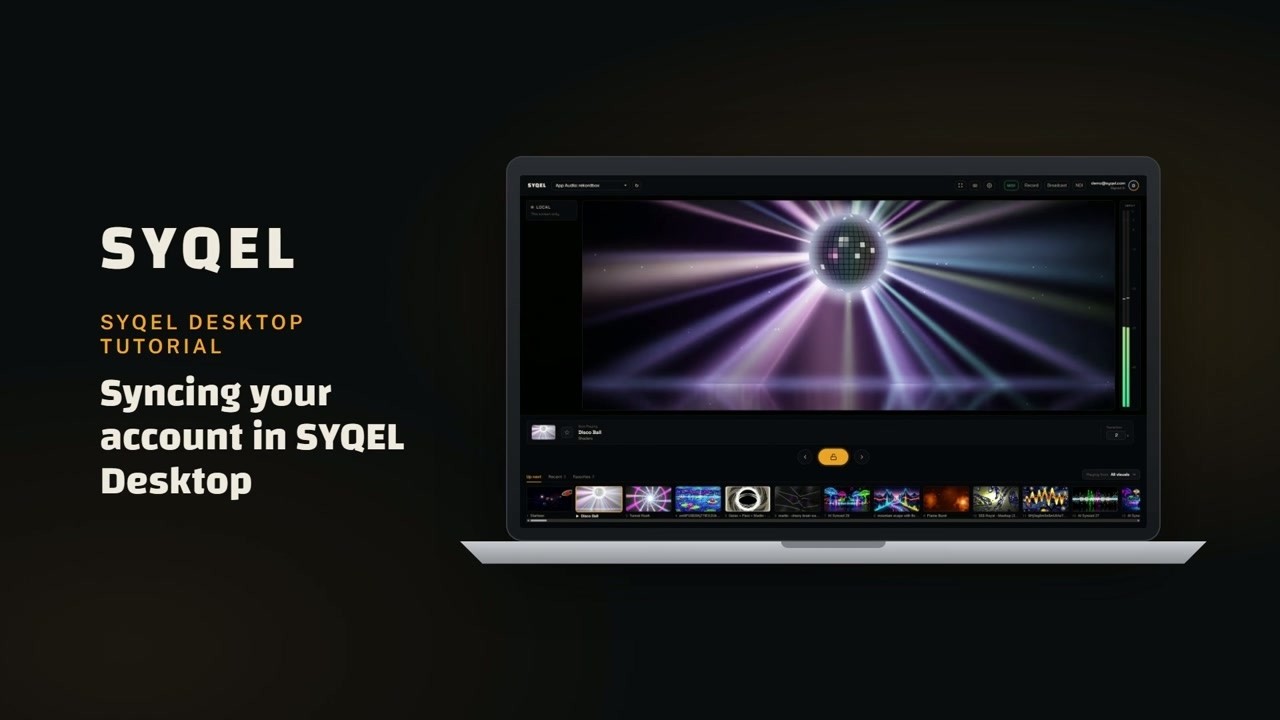
10Sync: your visuals, playlists and hotkeys on every computer
Sign in on another computer and your setup is already there.
1:13 Read the guide -
 11
11Make your own visual playlists: build a set list for your gig
Line up the visuals you want, in the order you want them, before you play.
1:15 Read the guide -
 12
12Create your own visuals with AI: shaders and images
Describe a look and the AI builds a shader or an image visual from it.
1:31 Read the guide


Ready to try it on your own set?
SYQEL Desktop is free to try on Mac and Windows.