Frequency Reactiveness

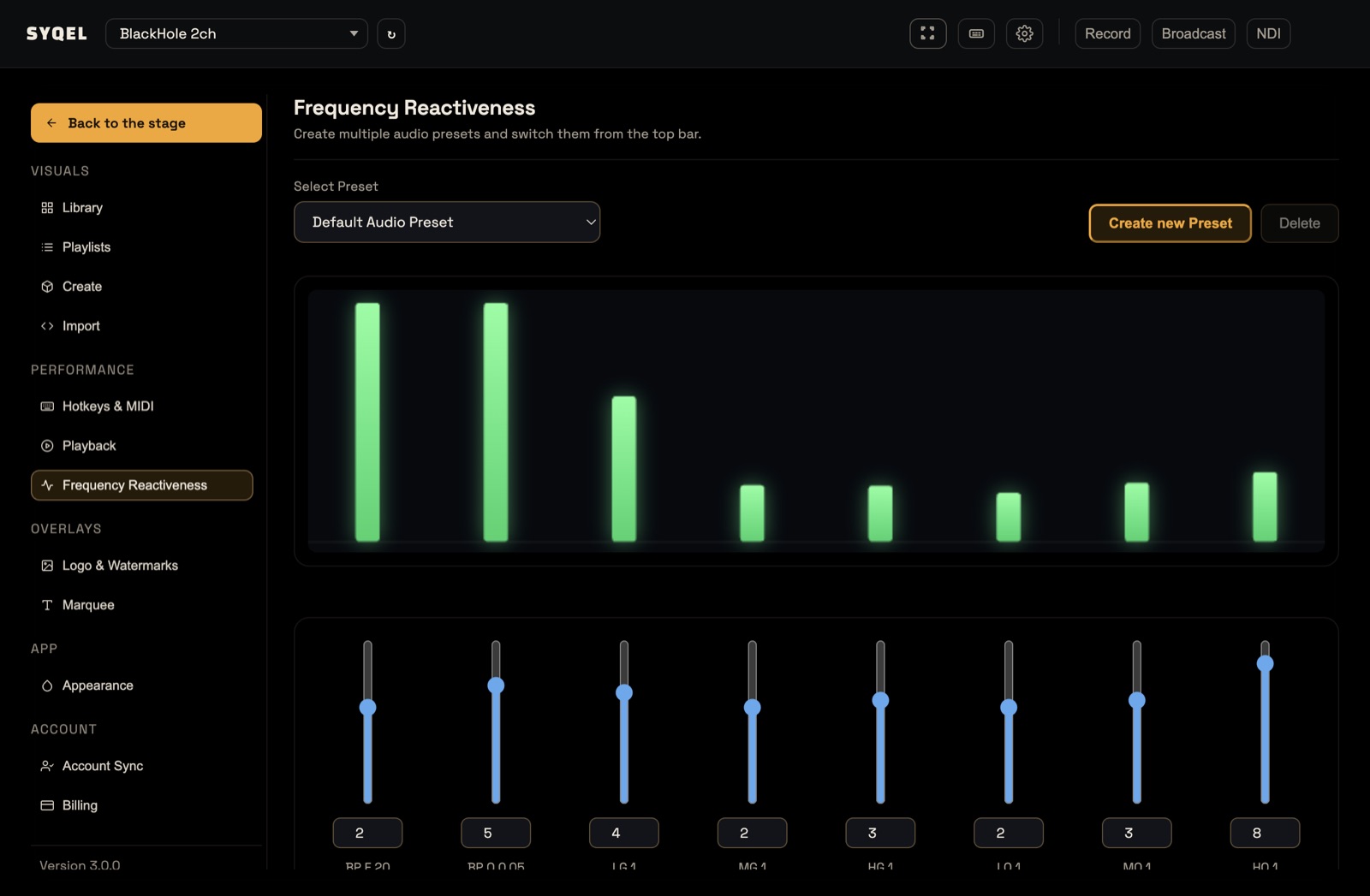
Frequency Reactiveness works like an equalizer for the visuals. It changes which parts of the music the visuals react to, from the kick and bass up to the hi-hats. It doesn’t change the sound coming out of your speakers.
One preset is active at a time. Its curve applies to every visual in every feed, including Milkdrop and Worlds, and in SYQEL Desktop to what you send out through Broadcast, NDI or Record. Use it to, say, make the visuals follow only the kick and bass.
Choose a preset
- Open Settings (the cog in the top bar) and choose Frequency Reactiveness.
- Pick a preset from Select Preset. It takes effect straight away.
SYQEL comes with Default Audio Preset (no change), Bass Boost, Treble Boost, Rock and Classical. Older guides call these audio presets. Presets are picked here only: the preset dropdown that used to sit in the top bar is gone, whatever the screen’s subtitle says.
Shape the curve
The eight sliders run from the lowest frequencies on the left to the highest on the right. Each goes from −10 to +10, and you can drag it or type a number in the box under it.
- 0 leaves that range as it is.
- Above 0 makes the visuals react more to that range. +10 doubles it.
- Below 0 makes them react less. −10 ignores that range completely.
The short codes under the sliders are technical names. Read the sliders simply as low to high.
The live spectrum above the sliders shows what the visuals hear right now, with each bar over the slider that shapes it. Play some music into your audio source to watch it move.
Make your own preset
Slider changes save straight into the preset you have selected, including the built-in ones. To keep a built-in preset as it is, make your own first:
- Select the preset closest to what you want.
- Click Create new Preset, type a Preset name and click Save preset. The new preset starts with the current slider values and is selected.
- Move the sliders.
To remove one of your presets, select it and click Delete. The built-in presets can’t be deleted. There’s no limit on how many presets you can make, on any plan.
Where presets are saved
- On desktop: presets are saved on this computer. They don’t sync to your other machines.
- In your browser: presets are saved in this browser. They don’t follow you to another browser or computer.
Did this help? If you’re still stuck, email [email protected].