Editing a visual

Every visual can be tuned from the Library.
- Open Settings (the cog in the top bar) and choose Library.
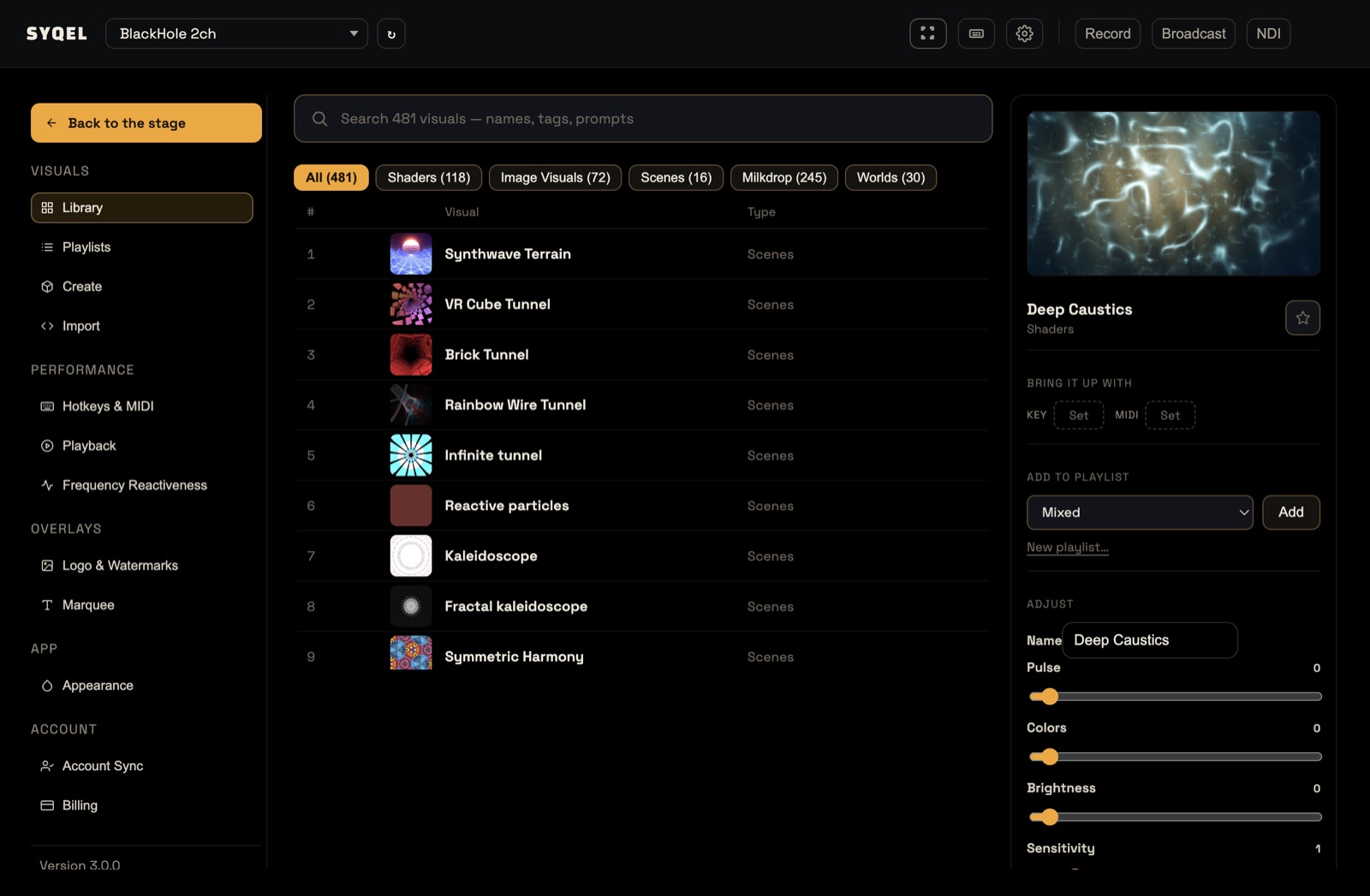
- Search for the visual, or narrow the list with the feed chips, and click it. It plays, and its details open on the right.
- Play some music, then use the controls under Adjust.
See it bigger
Click the expand button in the corner of the preview. The preview pops out over the Library list, and the controls stay in the panel on the right, so you can tune while you watch. Press Esc, or click the button again, to put it back.
To try the next visual without reaching for the mouse, hold Cmd (Mac) or Ctrl (Windows) and press Up or Down. It works with the preview popped out too.
Image Visuals and Shaders
You get a Name field and four sliders:
- Pulse: adds a pulsing zoom
- Colors: adds a color effect
- Brightness: adds a brightness effect
- Sensitivity: how strongly the visual responds to the audio
Once you move a slider, two buttons appear:
- Save changes updates the visual itself (for visuals you created or imported).
- Save as a copy keeps the original and adds your version to the Library.
Visuals that come with SYQEL are refreshed each time the app starts, so your version of one of them is always saved as a copy.
If the original is in your playlists, SYQEL asks: “The original plays in … Swap the copy in, in the same spot?” Click Swap the copy in to put your version in its place in those playlists, or Not now to leave them as they are.
Made the shader with AI? You can also change it by describing what’s different, under Refine with AI. See AI Visuals.
Milkdrop, Scenes and Worlds
These have Pulse, Colors and Brightness too, which move the whole picture with the music, plus Sensitivity, which sets how much of the music the visual hears.
The preview shows your changes as you move the sliders. Click Save changes to keep them, or Undo to go back. The stage plays the saved values only.
Visuals from the visual packs don’t have Pulse, Colors and Brightness, because they already move with the music by themselves. Their Sensitivity slider works the same way.
Also in the panel
The same panel lets you star the visual for Favourites, give it a key or MIDI pad under Bring it up with, and add it to a playlist under Add to playlist. See Adding a visual to a playlist.
Go further in SYQEL Studio
In SYQEL Studio you choose which instrument animates each part of a visual, like the lightning on the kick. See Pick the instrument for each effect.
Did this help? If you’re still stuck, email [email protected].