SYQEL Studio
Tutorials, step by step
Start with the quick start. Then 11 short videos, most under a minute, show you one job at a time: the library, your music, the Effects Board, making visuals with AI, and playing them in SYQEL Desktop and SYQEL Live.
Watch the playlist on YouTubeStart here

SYQEL Studio quick start: create and customize audio-reactive visuals with AI
Find a visual, let it hear your music, choose what animates it, make one with AI and save it for SYQEL Desktop and SYQEL Live.
Step by step
-
 01
01How to prompt SYQEL Studio's AI builder for custom DJ visuals
Write the prompt in five parts, press Send, then connect each effect to the kick or the snare on the Effects Board.
1:54 Read the guide -
 02
02Edit a visual with AI and keep your board settings
Switch off New idea, say what to change, and the rest of the visual, board included, stays as it was.
1:04 Read the guide -
 03
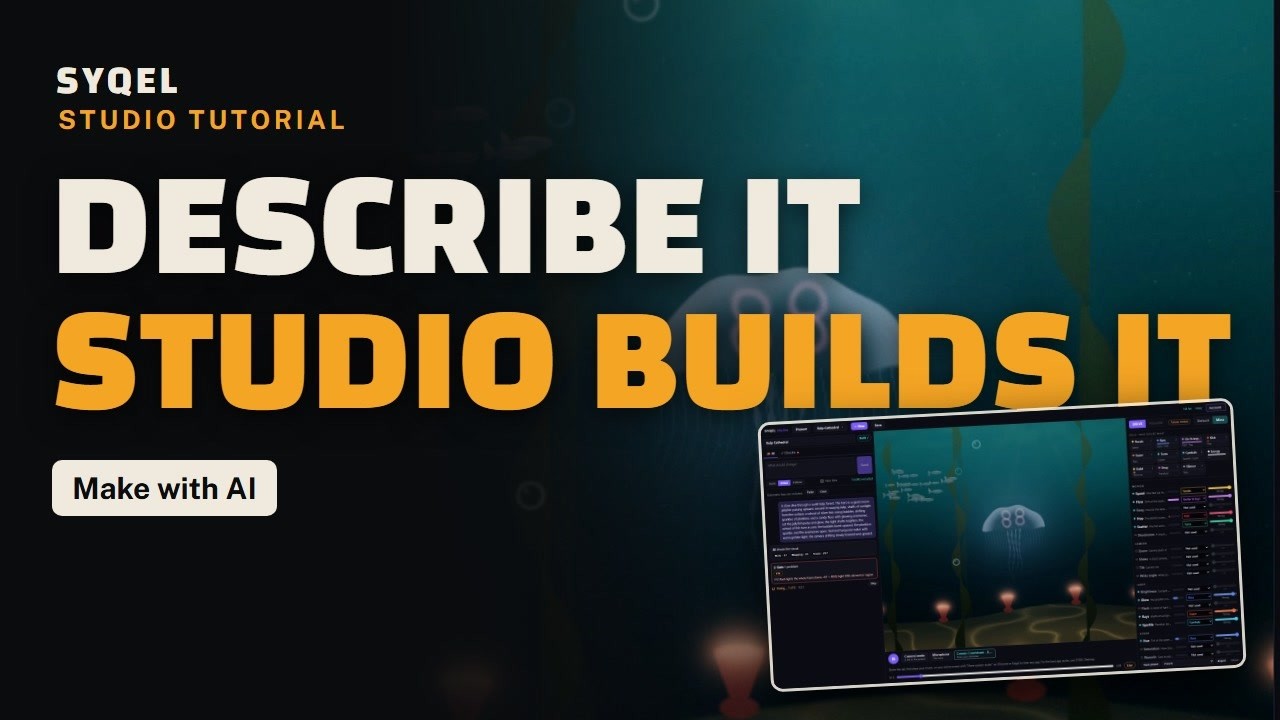
03Make music visuals with AI
Press New, describe the scene, pick Drive or Follow and press Send. Studio checks it on your music and fixes it on its own.
0:57 Read the guide -
 04
04Save your visual and play it in SYQEL Desktop
Press Save, name it, and it is waiting under My Studio visuals in SYQEL Desktop on the same account.
0:56 Read the guide -
 05
05Show your visual full screen with Present
Press Present or P to see only the visual, moving with your music. Escape takes you back to the editor.
0:36 Read the guide -
 06
06Let your visual listen to your music
Open a song file, share a tab or your screen with its sound, or use your microphone.
0:46 Read the guide -
 07
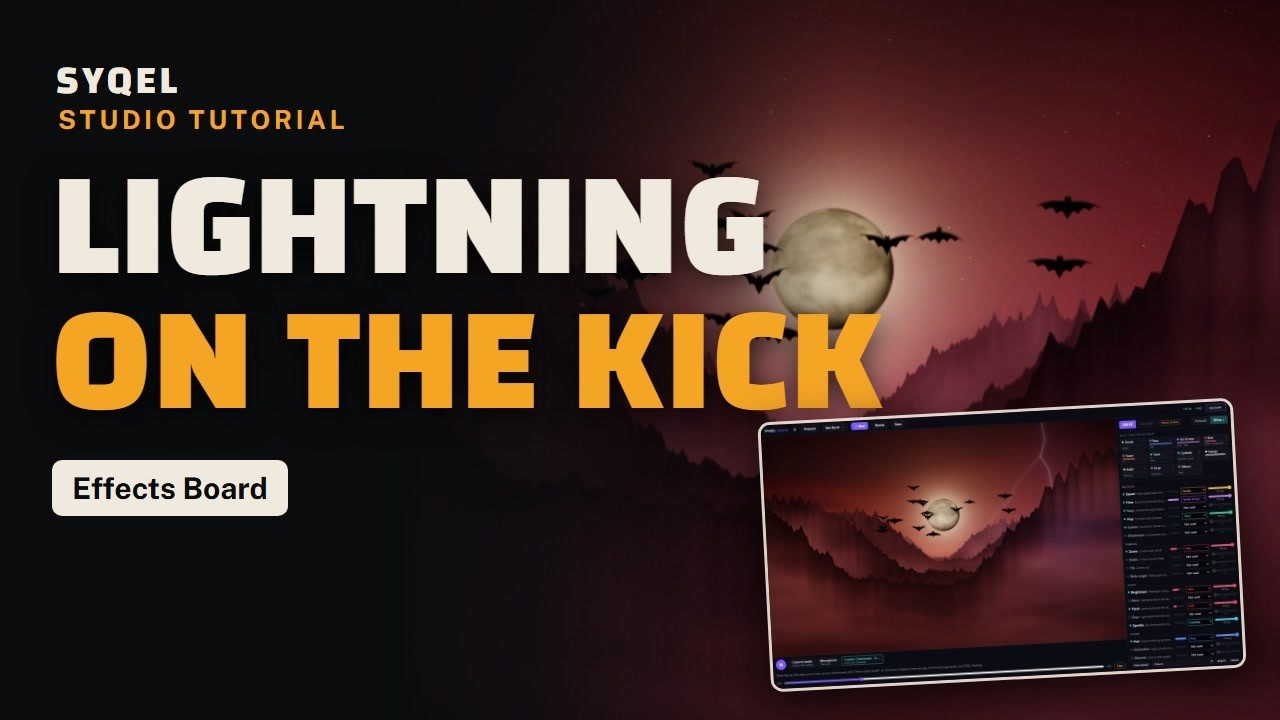
07Sync visuals to the kick drum: pick the instrument for each effect
On the Effects Board, move an effect to the kick, the snare, the vocals or the bass, and set its strength.
0:47 Read the guide -
 08
08Follow mode: give every instrument its own shape
Pick a shape, a colour and a strength for each instrument, and decide which ones lead.
0:47 Read the guide -
 09
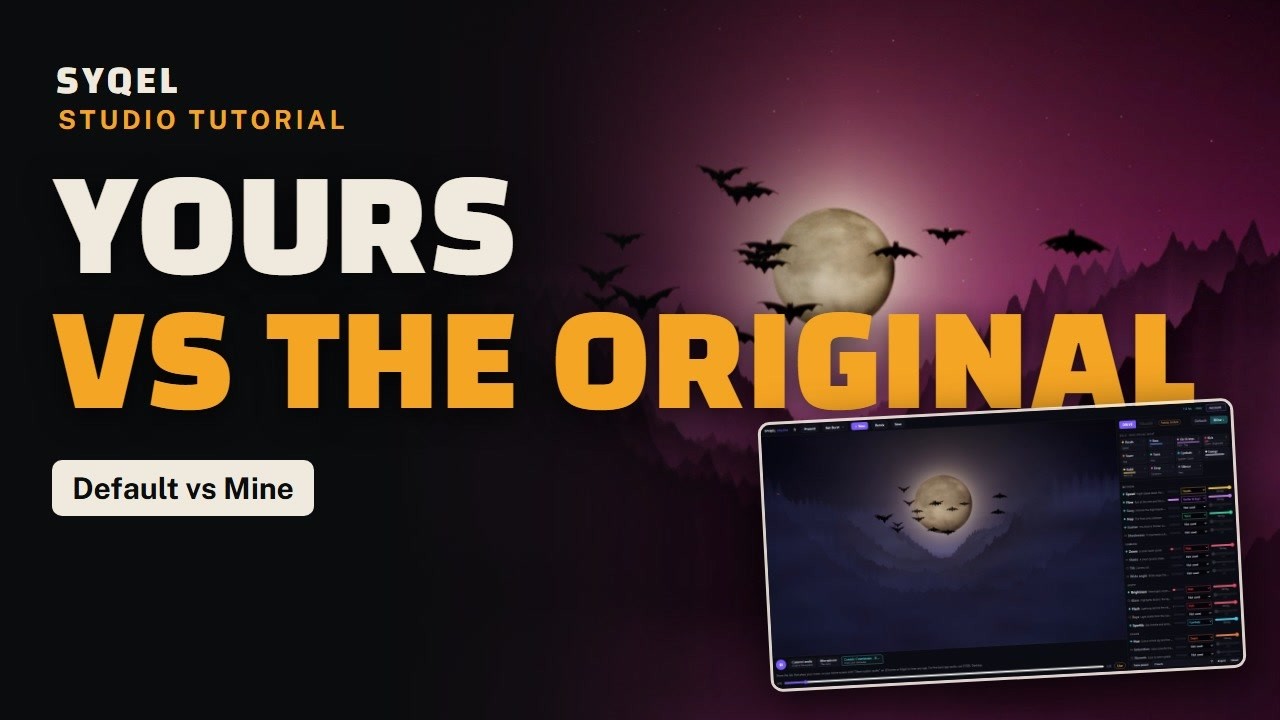
09Compare your custom visual with the original
Flip between Default and Mine while the music plays, and Reset when you want to start over.
0:36 Read the guide -
 10
10Save and load presets on the Effects Board
Save a look as a preset, bring it back in one click, or import a mapping file someone shared.
0:51 Read the guide -
 11
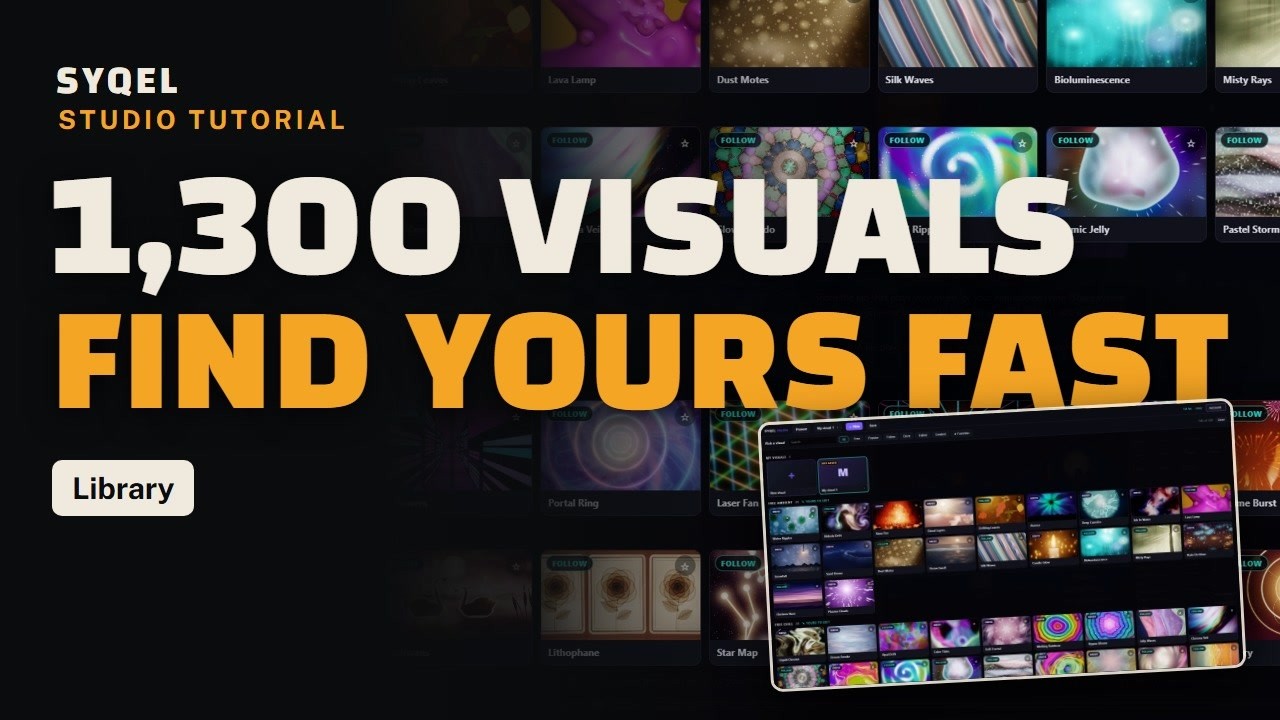
11Find a visual in the library: search, filters and favorites
Search by name, filter, star your favorites, and open any SYQEL visual to customize it.
0:44 Read the guide


Want the full course, with more lessons? SYQEL Studio on learn.syqel.com.
Ready to make a visual yours?
SYQEL Studio runs in your browser with your SYQEL account. What you save plays in SYQEL Desktop and SYQEL Live.