SYQEL Live
Tutorials, step by step
Start with the quick start. Then 14 short videos, each under a minute and a half, show you one job at a time: your sound, your visuals, overlays, and streaming to every platform at once.
Watch the playlist on YouTubeStart here

SYQEL Live quick start: multistream your DJ set on a virtual stage in 5 steps
Connect your DJ audio and camera, pick a stage, add your platforms and go live on all of them at once.
Step by step
-
 01
01Make your stream visuals move with your DJ software
Pick rekordbox, Serato or your other DJ app as the audio source, and check the meter and BPM.
0:47 Read the guide -
 02
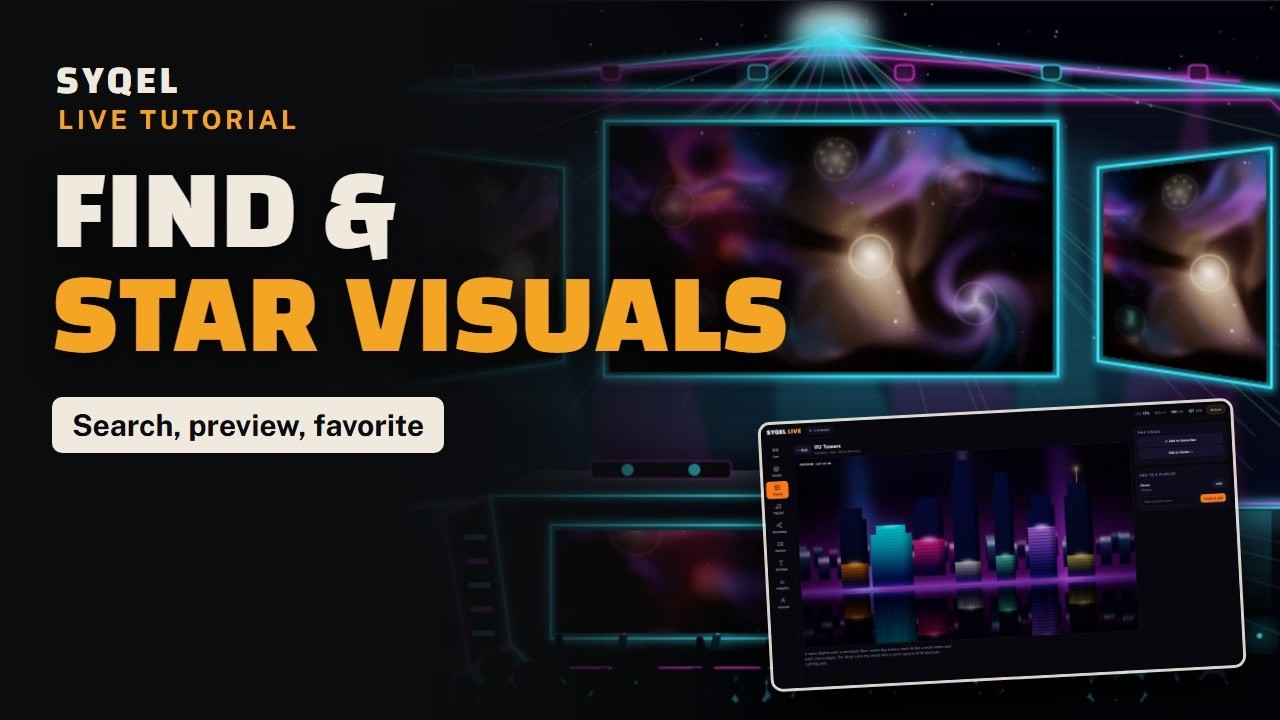
02Preview DJ visuals without changing your stream
Try any visual with your music in a private preview, then add it to a playlist or star it.
0:54 Read the guide -
 03
03Auto: let SYQEL pick visuals to your music
Turn on Auto and SYQEL picks the visuals and changes them on the bar, while you mix.
0:37 Read the guide -
 04
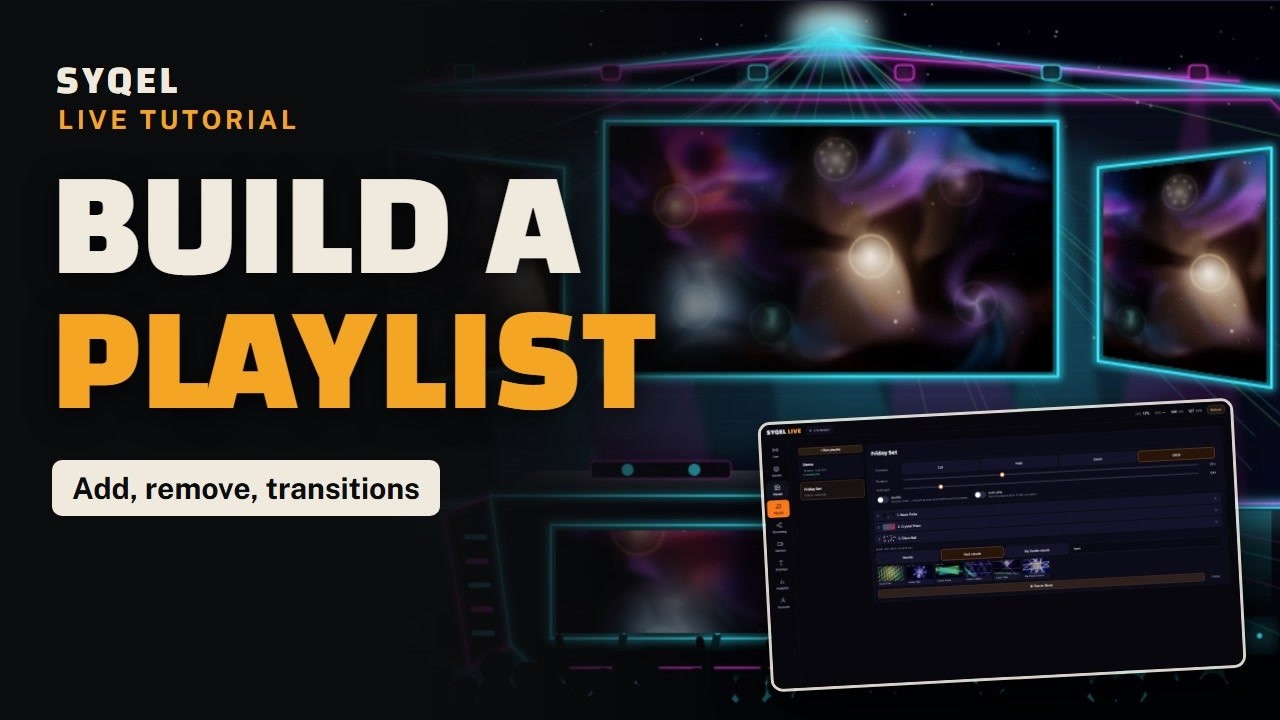
04Build a visual playlist with cut, fade, zoom or glitch transitions
Line up your visuals, pick a transition and a hold time, and run it in the show.
1:11 Read the guide -
 05
05Stream overlays: Now Playing, DJ name, countdown, logo and sponsor
Set up six overlays once, then show and hide each one with a number key mid-set.
1:27 Read the guide -
 06
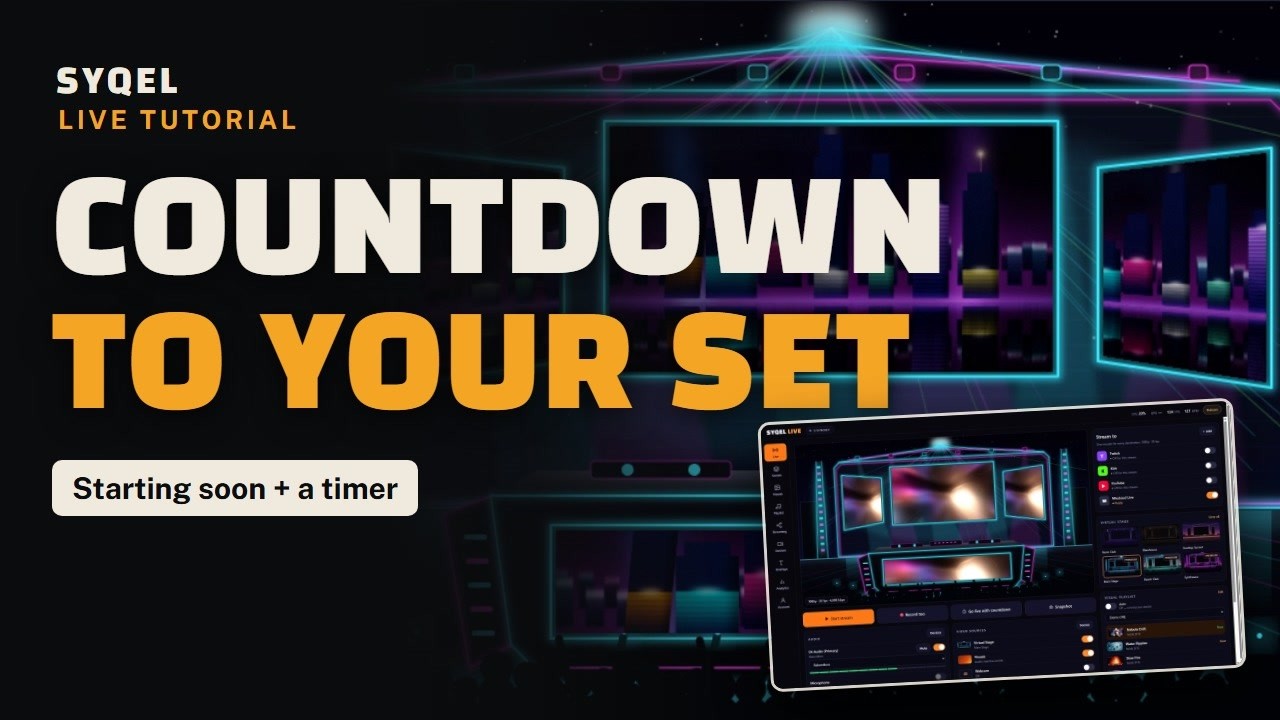
06Add a countdown timer before your DJ stream starts
Put "Starting soon" and a timer over your visuals while viewers arrive.
0:40 Read the guide -
 07
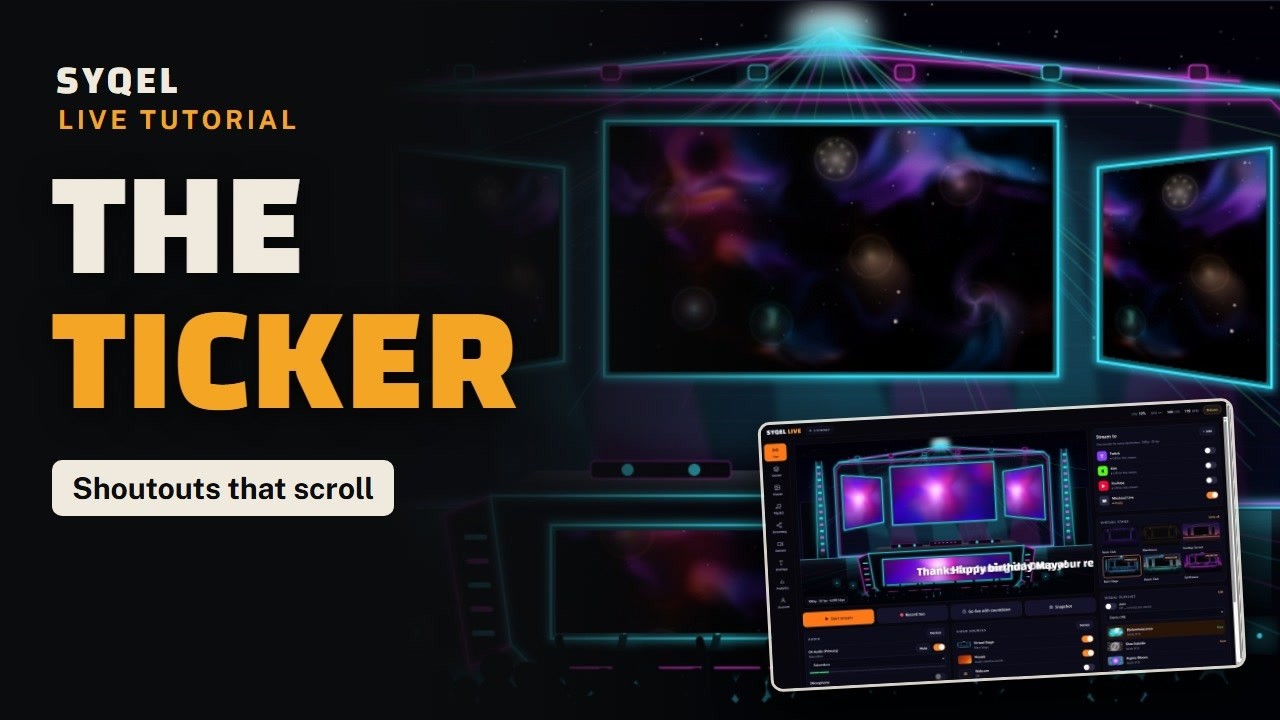
07Add a scrolling ticker with shoutouts to your stream
Save messages that loop along the bottom of your show, or send a one-off shoutout.
0:36 Read the guide -
 08
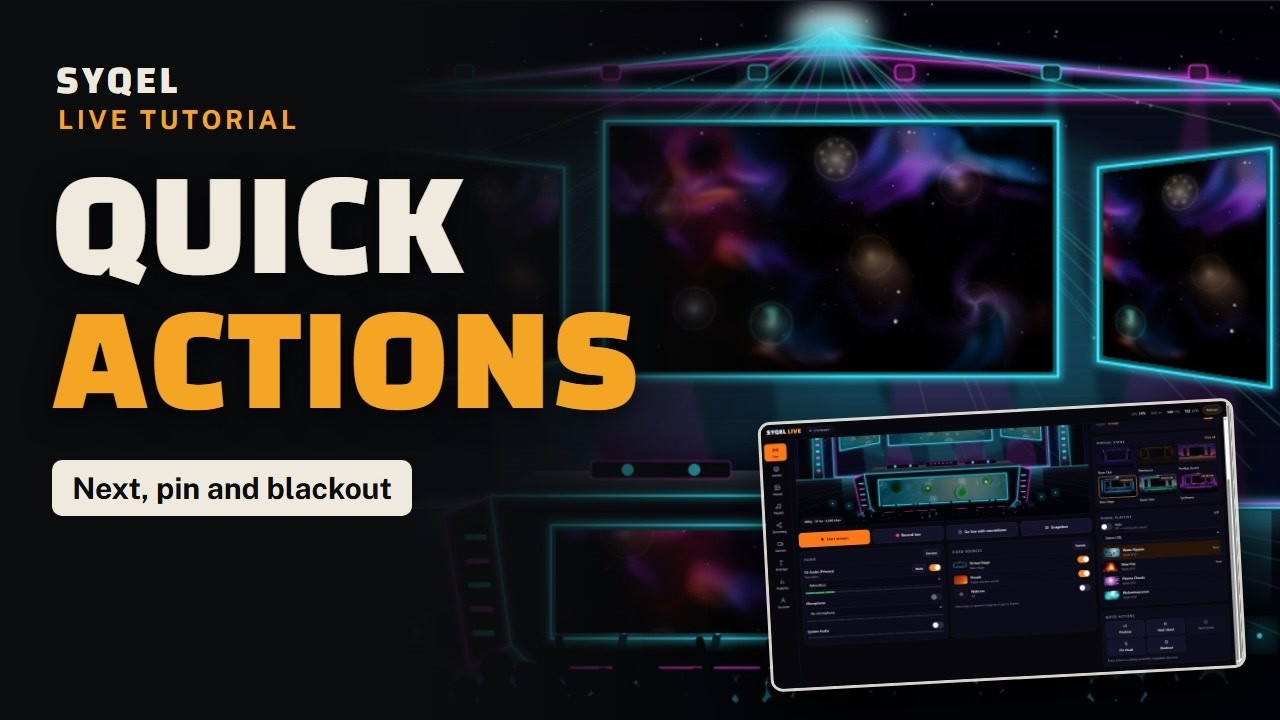
08Control your stream visuals mid-set: next, pin and blackout
Change the visual, hold one on screen, or fade to black for the drop, in one click or one key.
0:46 Read the guide -
 09
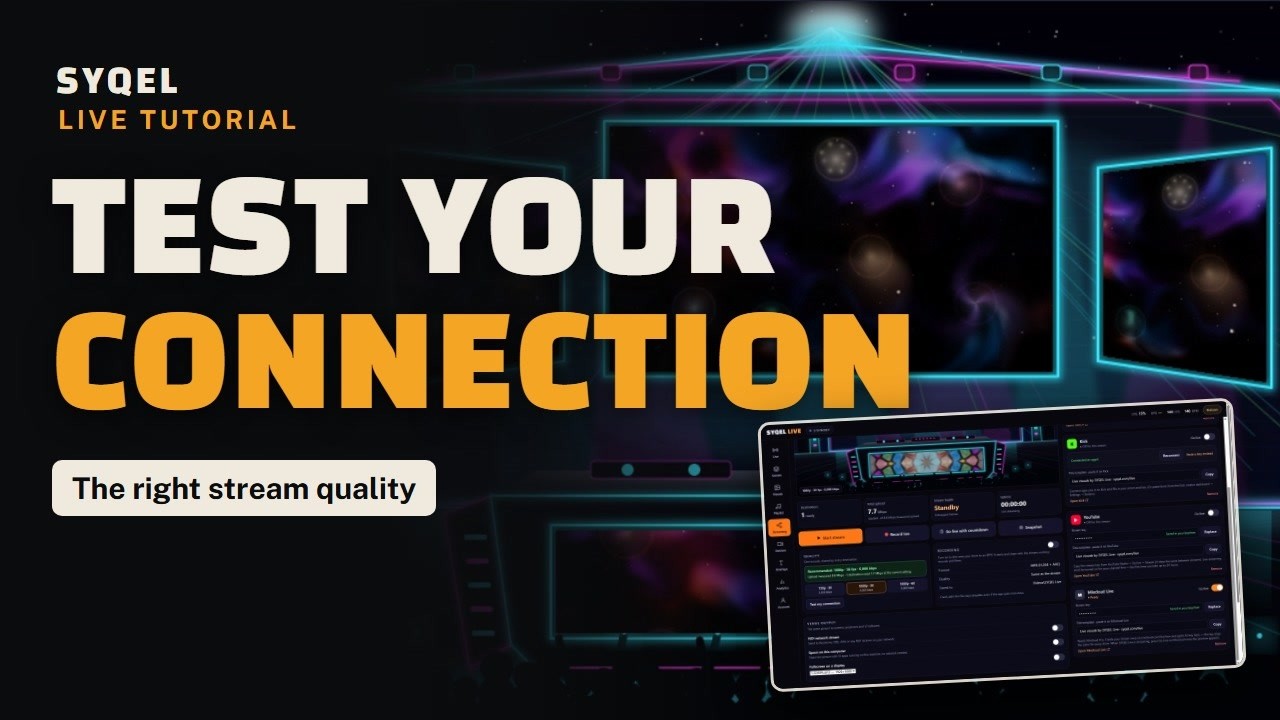
09Pick your stream quality and test your connection
Choose 720p, 1080p or 1080p at 60 fps, and let the connection test recommend what your upload can carry.
0:39 Read the guide -
 10
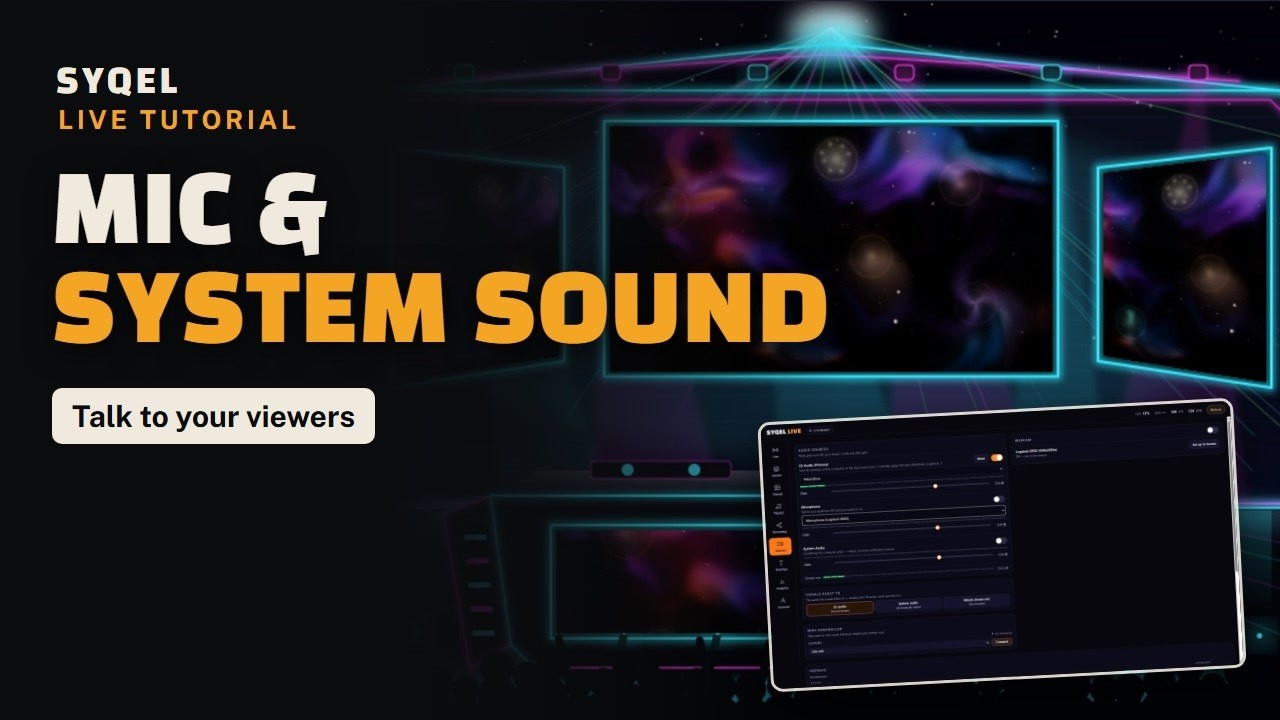
10Add your mic and system audio to your DJ stream
Talk to your viewers and mix in other sounds, while the visuals keep following the music.
0:45 Read the guide -
 11
11See how your DJ stream went with Analytics
Check your upload over the whole stream, how each platform held up, and every reconnect.
0:39 Read the guide -
 12
12Send your DJ visuals to a projector, OBS or VJ apps with NDI and Spout
Feed the screens in the room and other apps while you stream.
0:37 Read the guide -
 13
13Run your stream visuals from the keyboard or a MIDI controller
Change any hotkey with a click, or map your DJ controller's pads to the same actions.
0:40 Read the guide -
 14
14Multistream your DJ set to Twitch, YouTube, Kick and more at once
Add your platforms, paste each stream key and go live on all of them with one stream.
0:43 Read the guide


Want the full course, with more lessons? SYQEL Live on learn.syqel.com.
Ready to stream your next set?
SYQEL Live runs on macOS and Windows, next to the DJ software you already use.