Keyboard Shortcuts

SYQEL is built to be played from the keyboard, in SYQEL Desktop and in your browser at vj.syqel.com. These are the default keys, as listed in Settings › Hotkeys & MIDI:
| Key | Action |
|---|---|
| Space | Next Visual |
| Backspace | Previous Visual (the one you were watching before) |
| Enter | Lock Visual (hold this visual; press again to release) |
| X | Shuffle Playlist (play the current playlist shuffled; press again to switch off) |
| V | Hide/Show Visualizer (blacks out the visual) |
| H | Hide Topbar (hides the top bar, Output panel, Input meter and performance bar) |
| L | Toggle Watermark (your logo; paid plans) |
| M | Toggle Marquee |
| B | Broadcast Output |
| R | Record Video |
| S | Keyboard Shortcuts Menu |
| O | Replay Onboarding |
| 1–9 | Switch to logo slot 1–9 (paid plans) |
| 0 | The reserved SYQEL logo slot |
Press S, or click the keyboard icon in the top bar, to see the Keyboard Shortcuts overlay at any time.
In your browser
The same keys work in the web app at vj.syqel.com, with two differences:
- B (Broadcast Output) and R (Record Video) are in the list, but broadcasting and recording need SYQEL Desktop.
- H hides the top bar and the performance bar, for a clean screen to capture.
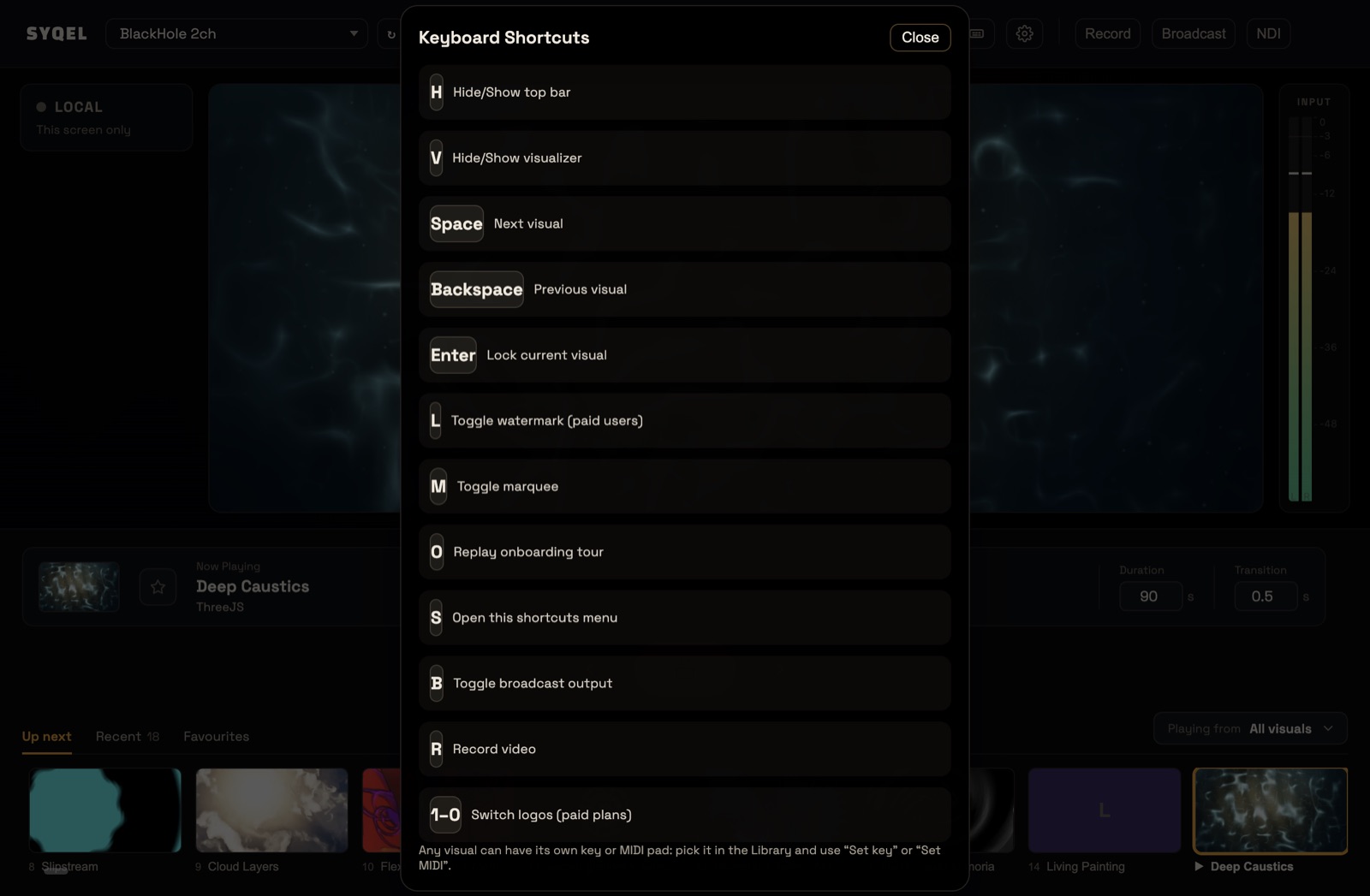
Change a key
- Open Settings › Hotkeys & MIDI.
- Under Visualizer Controls, click Learn Key next to the action. It changes to Press a key….
- Press the new key. It’s saved straight away.
Learn MIDI works the same way for a pad on your controller (see Connecting to MIDI). Restore Defaults puts every key back and clears the MIDI bindings you added. The number keys 1–0 are fixed and can’t be remapped.
Give a visual or a playlist its own key
- A visual: in Settings › Library, click it, then under Bring it up with click Set next to Key and press a key.
- A playlist: in Settings › Playlists, open it and use the Shortcuts line to pick whether the key plays it from the top or resumes where it left off.
These direct picks work even while a visual is locked.
In the Library and Playlists
While Settings is open, hold Cmd (Mac) or Ctrl (Windows) and press Up or Down to step through the list:
- In Library, the next visual plays in the preview, as if you’d clicked it.
- In a playlist under Playlists, the preview card moves to the next visual.
Good to know
- Shortcuts don’t fire while Settings is open. Close Settings to use them.
- Every key and remap works on every plan. On Free, L and the number keys open the upgrade screen, because showing your own logos needs a paid plan. See Adding Logo Watermarks.
Did this help? If you’re still stuck, email [email protected].