Adding a visual to a playlist

You add visuals to a playlist from the Library. A playlist can mix any kind of visual: Shaders, Image Visuals, Scenes, Milkdrop and Worlds.
- Open Settings (the cog in the top bar) and choose Library.
- Find the visual. Type in the search box, or use the feed chips (Shaders, Image Visuals, Scenes, Milkdrop, Worlds) to narrow the list.
- Click the visual. It plays, and its details open in the panel on the right.
- Under Add to playlist, pick the playlist from the dropdown and click Add. The button changes to Added once the visual is in that playlist.
To start a new playlist at the same time, choose New playlist…, type a name, and click Create and add.
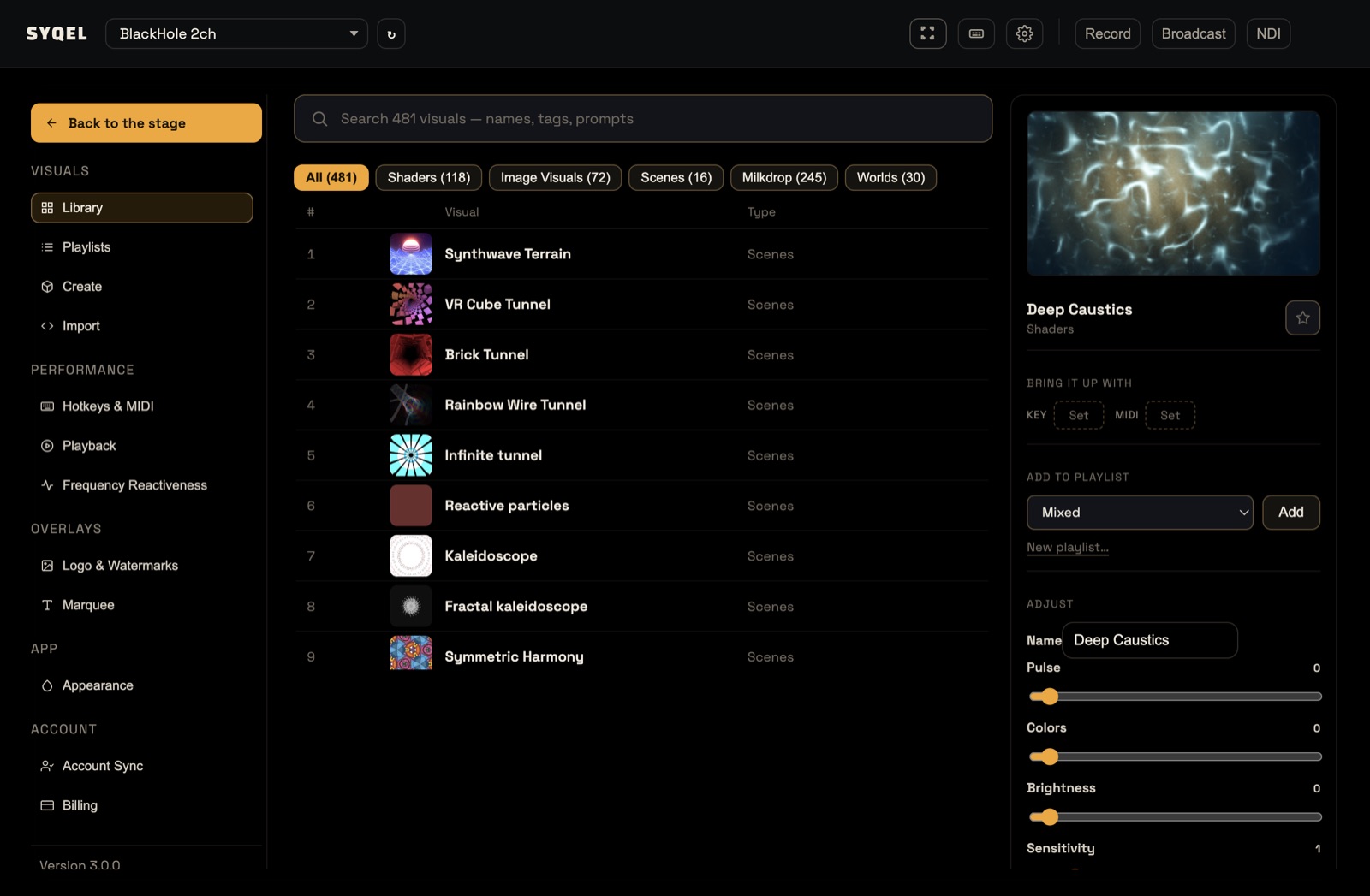
Adding a visual you just made
When you create a visual on the Create screen, click Save and Edit. That saves it and opens it in the Library, where you can add it to a playlist the same way. A shader you bring in through Import can go straight into a playlist: tick Add to a playlist after saving before you click Save to library.
Starring a visual
The star next to a visual adds it to Favourites, which is a playlist like any other. You can reorder it, give it a shortcut and play it from Playing from.
Tip: if the preview is not moving, the app is not hearing anything. Play some music and check the audio source in the top bar. See Troubleshooting audio detection.
Next: Editing a playlist.
Did this help? If you’re still stuck, email [email protected].