Making a visual playlist
A playlist is a set list: the visuals you want, in the order you want them. It can mix any kind of visual: Shaders, Image Visuals, Scenes, Milkdrop and Worlds.
1. Create the playlist
- Click the Settings cog in the top bar and choose Playlists.
- Click + New playlist, type a name, and click Create.
2. Add visuals
- Choose Library in Settings.
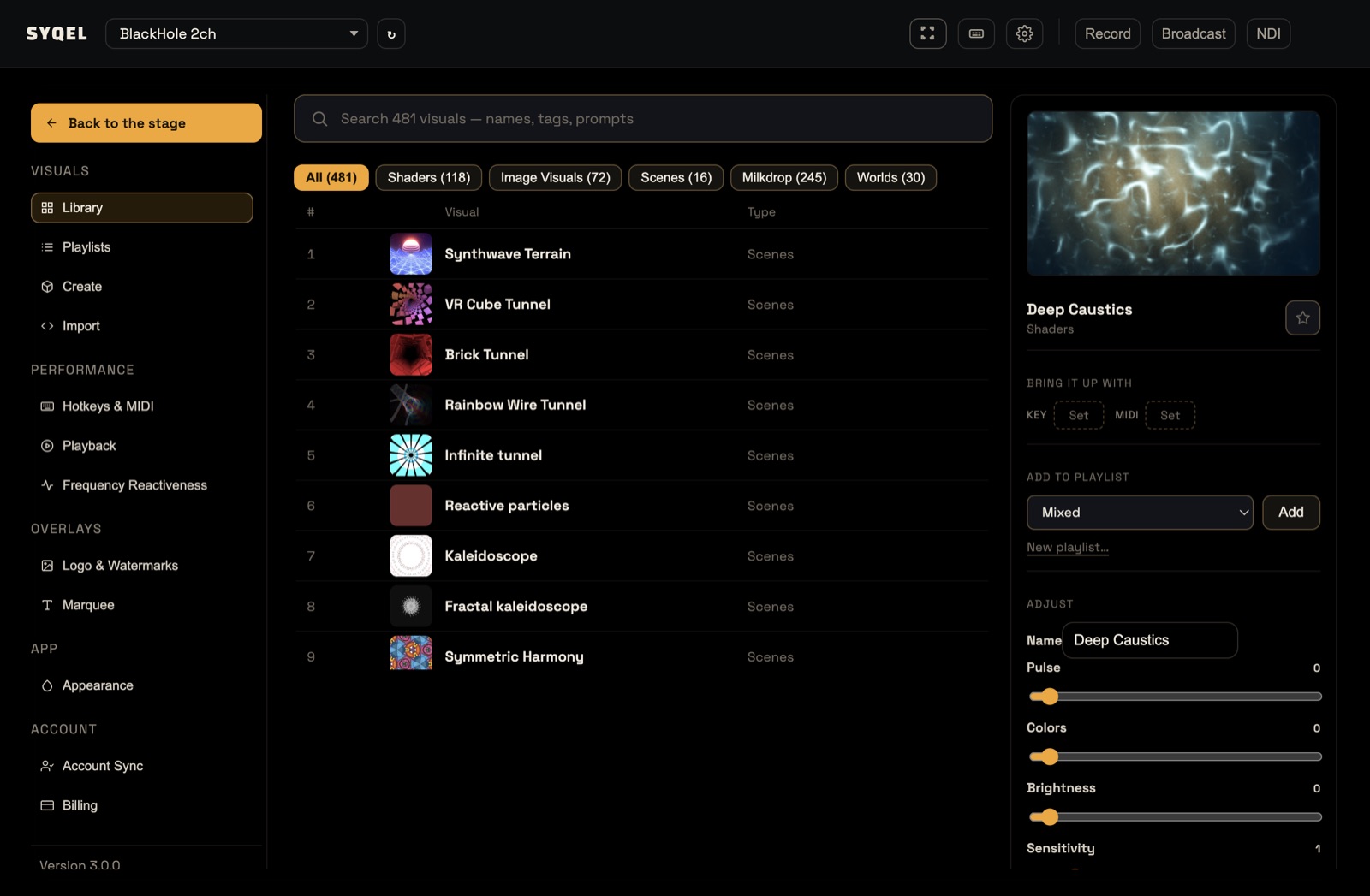
- Search, or use the feed chips to narrow the list. Click a visual to preview it.
- Under Add to playlist, pick your playlist and click Add. The button changes to Added.
You can also skip step 1: choose New playlist… in the Add to playlist dropdown, name it, and click Create and add.
3. Arrange it
Back in Playlists, open your playlist. Drag a visual by its handle to reorder it, or click × to remove it. Changes save as you go.
4. Play it
Click Playing from at the right of the performance bar and pick your playlist under Playlists. It plays from the top, and the strip shows its Queue.
To bring up a playlist mid-set, give it a key or a MIDI pad from its page in Playlists. See Editing a playlist.
Did this help? If you’re still stuck, email [email protected].