Visualizer Playback Behavior

SYQEL moves through visuals on its own by default. You choose how in Settings › Playback. Changes apply straight away.
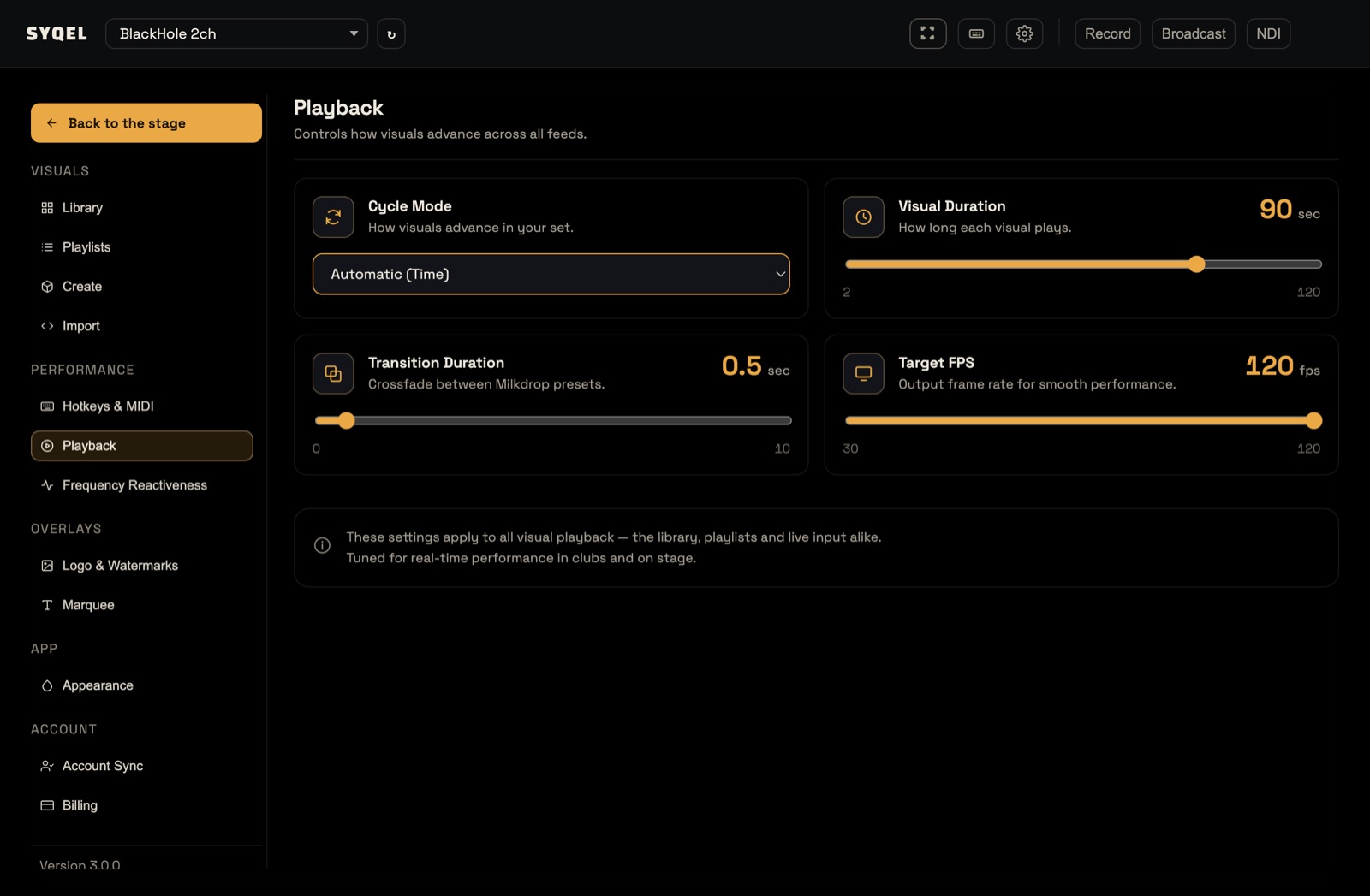
Cycle Mode
- Automatic (Time) (the default): a new visual every Visual Duration seconds.
- Automatic (BPM): a new visual every so many measures of your music.
- Manual: the visual changes only when you press Next or pick one.
The other settings
- Visual Duration: how long each visual plays in Automatic (Time), from 2 to 120 seconds. The default is 12. You can also type it in the Duration field of the Now Playing panel.
- Crossfade: On fades every visual into the next. Off (the default) cuts, and only Milkdrop presets blend. The slider sets how long the fade takes, from 0 to 10 seconds; the default is 2. See Crossfade between visuals.
- Target FPS: the output frame rate: 30, 60 or 120. The default is 120. How smoothly it runs depends on your computer (and, in the web app, your browser).
BPM mode
Choosing Automatic (BPM) adds a Beat card:
- BPM: the tempo, from 40 to 240.
- Advance every: 4, 8, 16, 24, 32 or 64 measures. The default is 8.
At 120 BPM, advancing every 8 measures changes the visual every 16 seconds.
SYQEL detects the BPM from your music and uses it, on Mac, on Windows and in your browser. Until it locks on, it uses the BPM you set.
Next, Previous, Lock and Shuffle
These work in every mode, from the buttons under the Now Playing panel, the keyboard, or a MIDI pad:
- Next (Space, or ›) moves to the next visual in what you’re playing from, and restarts the timer.
- Previous (Backspace, or ‹) goes back to the visual you were actually watching before, even if you jumped there from somewhere else.
- Lock (Enter, or the padlock) holds the current visual. Auto-advance stops, and Next and Previous are disabled until you release it. Clicking a visual in the strip or the Library, or a key or pad bound to a visual or playlist, still works while locked. The lock releases on its own when you switch to a visual from a different feed.
- Shuffle (X, or the shuffle button) plays the playlist you’re playing from in a shuffled order, without changing the playlist. See Shuffle it.
Two more things to know:
- Auto-advance pauses while Settings › Library is open, so browsing never changes the show.
- What plays is set by Playing from in the performance bar. See Visual Feeds.
You can change these keys, or map them to a controller, in Settings › Hotkeys & MIDI. See Keyboard Shortcuts and Connecting to MIDI.
Did this help? If you’re still stuck, email [email protected].