Visual Feeds

SYQEL sorts its visuals into five feeds, in SYQEL Desktop and in your browser at vj.syqel.com:
- Shaders: animated visuals drawn entirely from your music, including the ones you generate or import. See Shaders.
- Image Visuals: AI-made pictures that move with your music, including any you generate in Create.
- Scenes: 3D scenes that ship with the app.
- Milkdrop: the classic Winamp-era presets. See Milkdrop.
- Worlds: 3D worlds that ship with the app, such as Starfarer.
Choose what plays
Use the Playing from button at the right of the performance bar, under the stage.
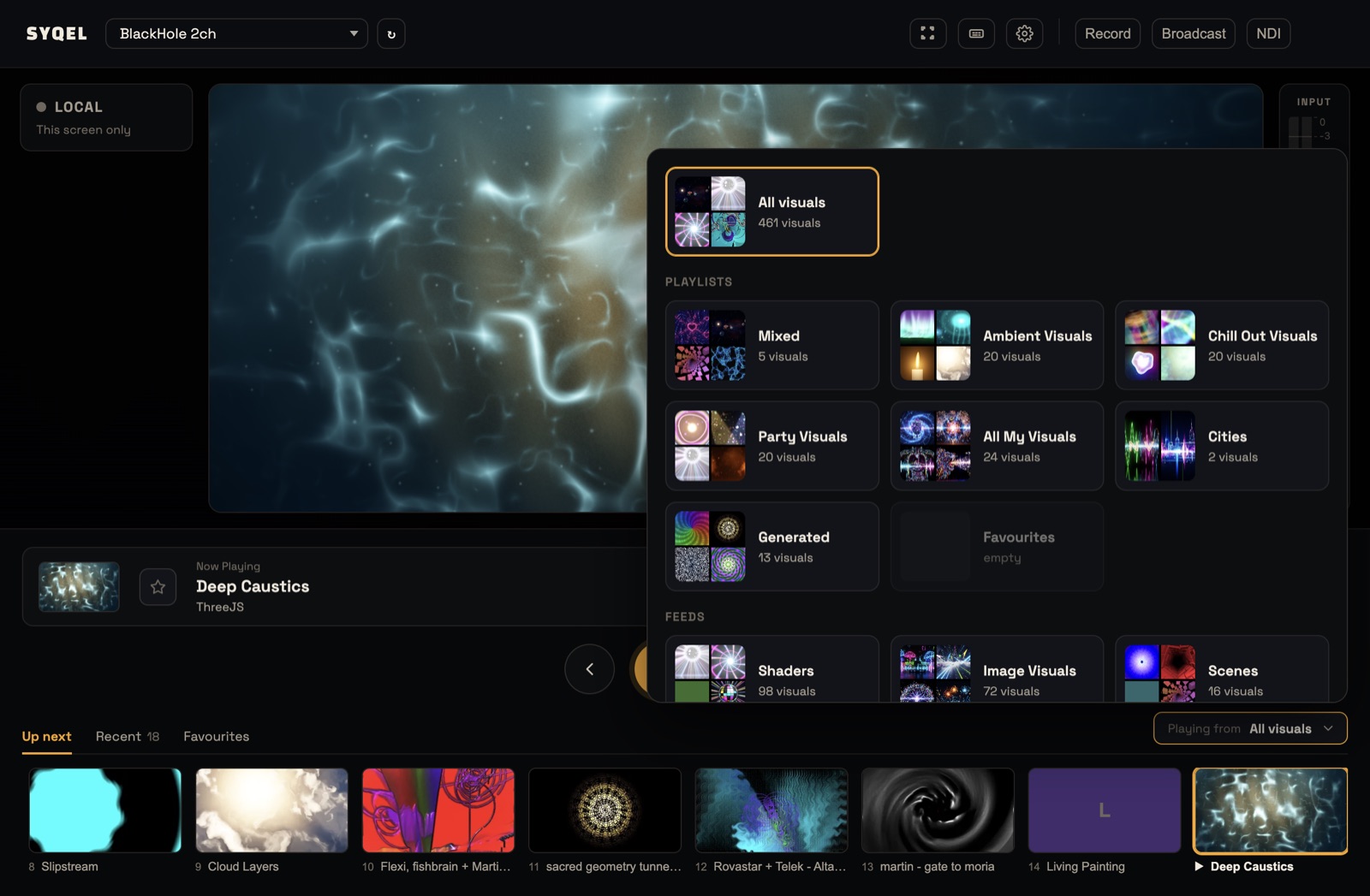
- Click Playing from.
- Pick one card:
- All visuals plays your whole library.
- A card under Playlists plays that playlist in its own order.
- A card under Feeds plays only that feed.
- It starts playing from the top straight away.
You can switch at any time. The audio source keeps running and the show doesn’t stop. A card that would play nothing is greyed out, with a note such as “empty” or “none in your library”.
The Up next tab of the strip shows everything the chosen source will play, in order. When a playlist is chosen, the tab is called Queue.
Good to know
- On desktop: every feed plays offline once you’ve run an Account Sync. Built-in Scenes, Worlds and the built-in shaders ship with the app.
- In your browser: the web app loads your library from your account, so it needs an internet connection.
- To browse every visual, open Settings › Library and use the feed chips at the top.
Did this help? If you’re still stuck, email [email protected].