Creating a visual with AI

Describe a visual in plain words and SYQEL generates it for you, ready to react to your music.
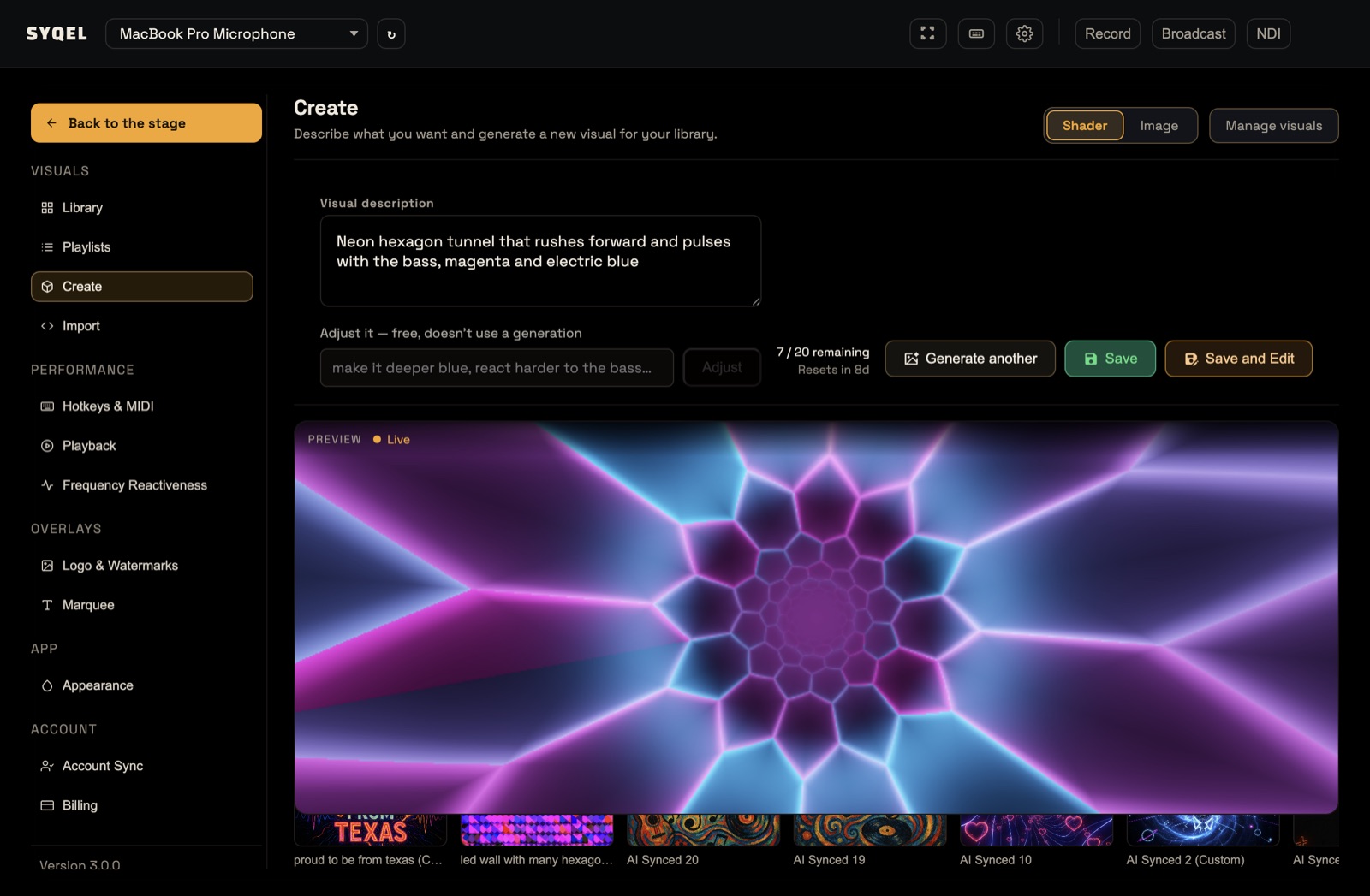
- Open Settings (the cog in the top bar) and choose Create.
- Pick Shader (an animated, sound-driven visual) or Image (an AI picture brought to life by your audio) at the top.
- Type what you want in Visual description, for example “A cyberpunk city grid that pulses with neon blue light”.
- For an Image, choose an Aspect ratio (1:1, 4:3, 16:9, 9:16 or 3:4) and an Art style (Neon, Cartoon, Pixel Art, Painting, Realistic, Abstract or Geometric).
- Click Generate. This can take a little while.
- Watch the result in the preview. Play some music so you can see it react.
- Click Save to keep it in your Library, or Save and Edit to save it and open it in the Library, where you can tune it and add it to a playlist.
Not quite right? Click Generate another. For a Shader, you can also type a change under Adjust it (for example “make it deeper blue, react harder to the bass”) and click Adjust. Adjusting is free.
Your AI credits
Each generation uses one AI credit. The meter on the Create screen shows how many you have left (“12 AI credits left”), how many are this month’s and how many you bought, and when your monthly credits renew. Shaders and Images use the same credits. A generation that doesn’t finish doesn’t use a credit. When you run out, Generate opens the store at AI credits. See SYQEL Desktop plan, Gig Pass and AI credits.
Your recent creations are listed under Recently generated. Click one to open it in the Library. See Editing a visual to fine-tune it. To change a shader you made by describing it, use Refine with AI in the Library. See AI Visuals.
Go further in SYQEL Studio
Want a whole scene, with each part on its own instrument? Describe it in SYQEL Studio and it plays in SYQEL Desktop when you save it. See Make music visuals with AI in SYQEL Studio.
Did this help? If you’re still stuck, email [email protected].