Creating a visual playlist

A playlist is a set list: the visuals you want, in the order you want them. Build it before the show, then play only that playlist while you perform. A playlist can mix any kind of visual: Shaders, Image Visuals, Scenes, Milkdrop and Worlds. You can make as many as you like on any plan, and playlists work the same in SYQEL Desktop and in your browser at vj.syqel.com.
Create a playlist
- Open Settings (the cog in the top bar) and choose Playlists.
- Click + New playlist at the bottom of Your playlists.
- Type a name and click Create (or press Enter).
You can also create one from the Library: select a visual, open the dropdown under Add to playlist, choose New playlist…, and click Create and add.
Fill it
- Open Settings › Library. Search, or use the feed chips to narrow the list.
- Click a visual to preview it.
- Under Add to playlist, pick your playlist and click Add. The button changes to Added.
More detail: Adding a visual to a playlist.
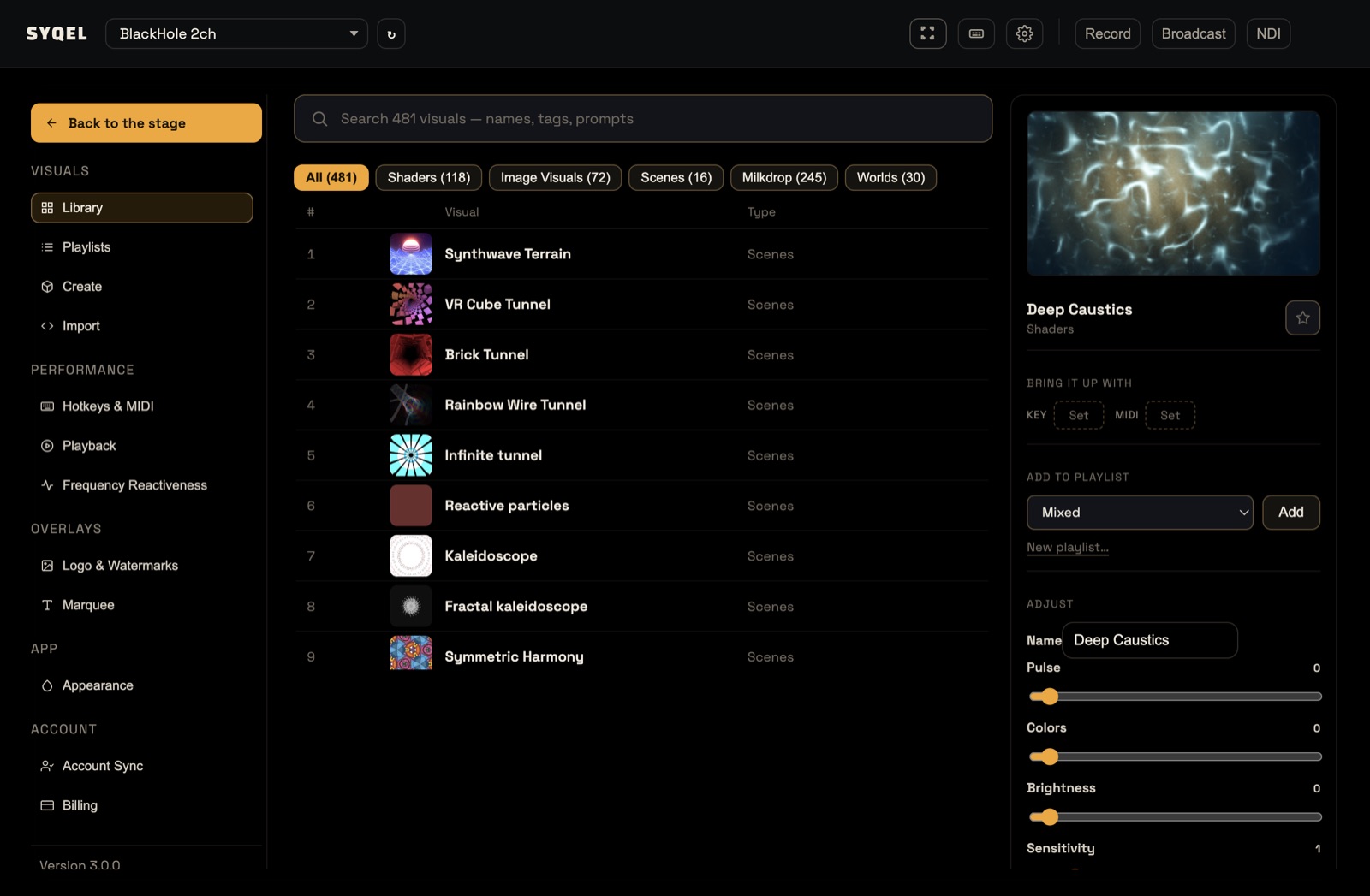
Arrange it
Back in Playlists, open your playlist. Drag a visual by its handle to reorder it, or click × to remove it. Changes save as you go.
Play it
On the stage, click Playing from at the right of the performance bar and pick your playlist under Playlists. It plays from the top, and the strip shows its Queue in order.
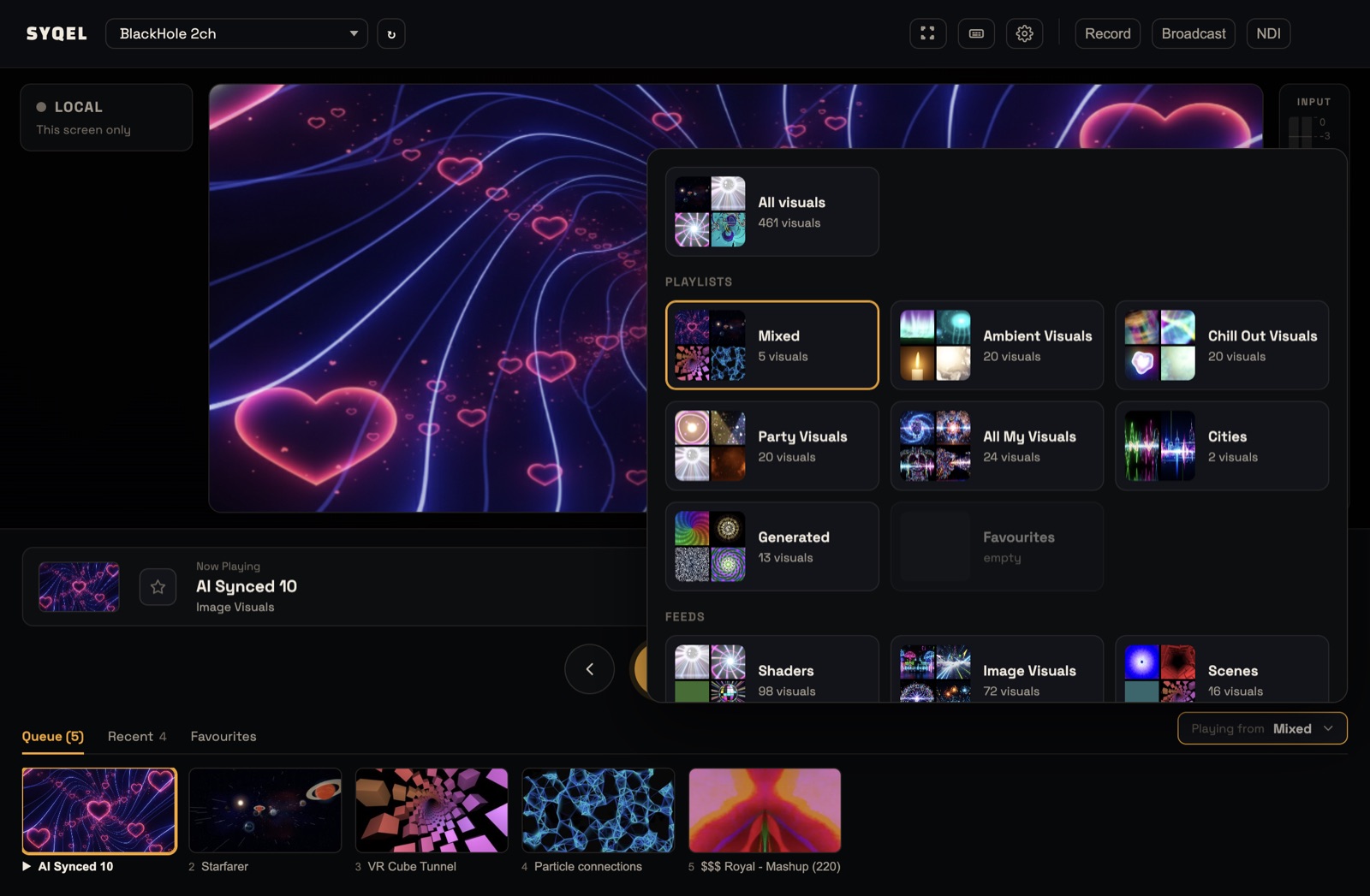
Shuffle it
Want your set in a new order each time? Click the Shuffle button, after Previous, Lock and Next under the Now Playing panel, or press X. The playlist plays in a shuffled order, and the button is highlighted. Press it again to go back to your order.
- Shuffle doesn’t change the playlist. Your order is still there in Settings › Playlists.
- The visual on screen keeps playing when you switch Shuffle on or off.
- It works when you play from a playlist. All visuals already plays in a shuffled order, so the button is greyed out there.
- SYQEL remembers Shuffle on this computer (or browser) until you switch it off.
To put Shuffle on a controller, use Learn MIDI next to Shuffle Playlist in Settings › Hotkeys & MIDI. See Connecting to MIDI.
Give it a shortcut
You can also give a playlist its own key or MIDI pad. Open it in Settings › Playlists and use the shortcut line: “A shortcut that will play it from the top (or resume where it left off) when I press a key / a pad”. See Editing a playlist.
Did this help? If you’re still stuck, email [email protected].